
10 NotebookLM Hacks You Must Know: Faster Research, Cleaner Notes, Better Drafts

Raman Singh
Raman Singh is a highly skilled marketing professional who serves as the head of marketing at Copyrocket AI

NotebookLM can turn your files into a question-and-answer workspace. You add sources, you ask questions, and you get answers that stay tied to your material.
Many people stop at basic summaries. You can do more. You can build study guides, draft outlines, extract quotes, compare sources, and keep answers grounded in your documents.
This post shares 10 NotebookLM Hacks You must Know. Each hack includes clear steps and copy-ready prompts. Use these hacks to save time, reduce errors, and create output you can trust.
Key Takeaways
- Use a “source map” prompt to see what you uploaded and what each file covers.
- Force citation-first answers to cut guesswork and keep output tied to your sources.
- Turn long documents into action lists, study guides, and meeting briefs in minutes.
- Compare sources side by side to spot conflicts, gaps, and missing proof.
- Create reusable prompt templates for repeat tasks like blog outlines and SOPs.
- Build a fact-check loop that flags unsupported claims before you publish.
Hack 1: Build a “Source Map” Before You Ask Anything
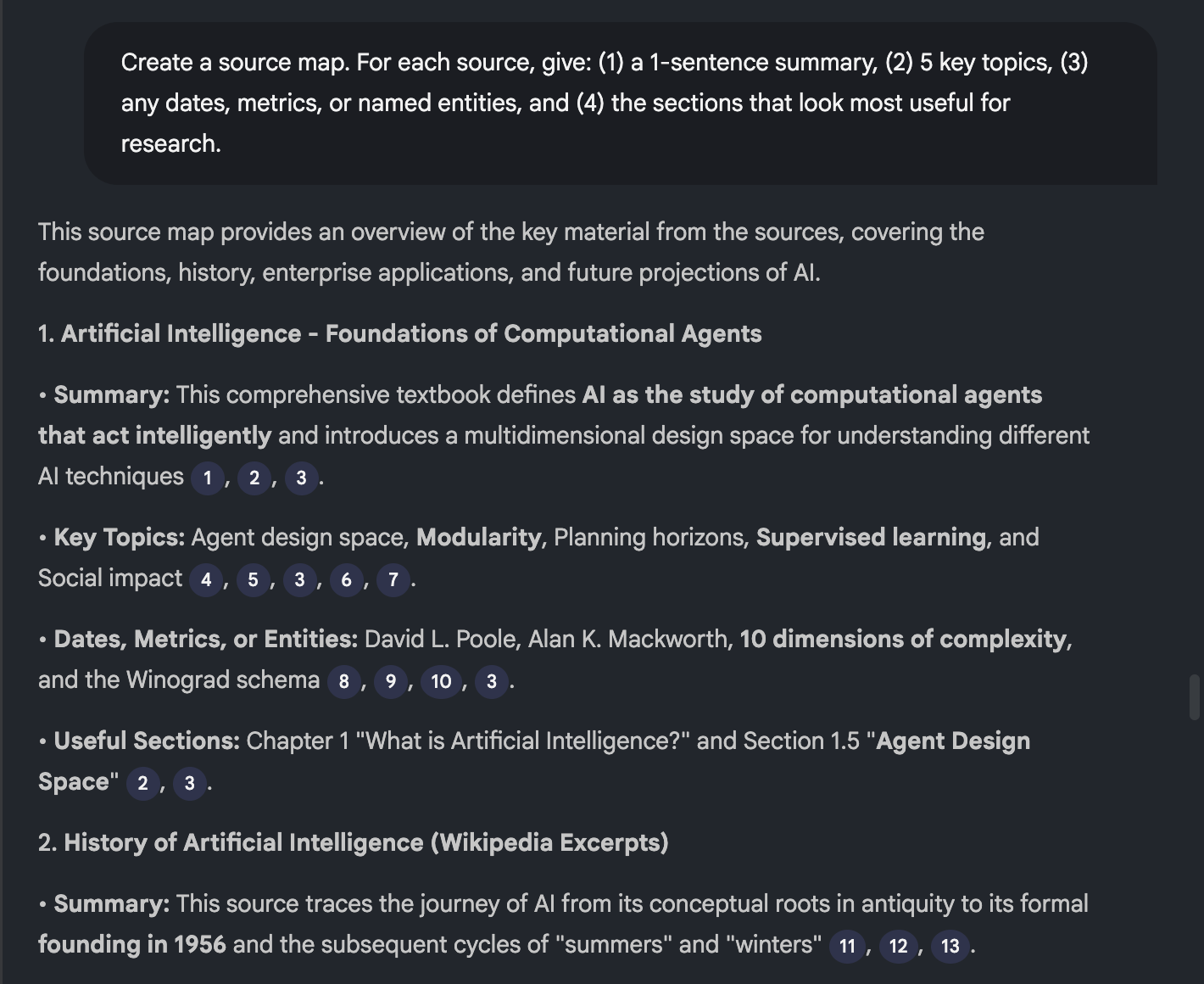
NotebookLM works best when you understand what your sources contain. A source map gives you a quick index of topics, dates, and key sections. This step prevents vague questions and weak answers.
How to do it
- Upload your sources (docs, PDFs, notes, slides, or pasted text).
- Ask NotebookLM to list each source and summarize it in one line.
- Ask for a topic list so you know what questions your sources can answer.
Copy-ready prompt
Prompt: “Create a source map. For each source, give: (1) a 1-sentence summary, (2) 5 key topics, (3) any dates, metrics, or named entities, and (4) the sections that look most useful for research.”
Pro tip
- If a source map shows gaps, add one more source before you start drafting.
- If you see overlap, you can reduce repeated questions later.
Hack 2: Force Citation-First Answers (No Loose Claims)
NotebookLM can answer fast, but speed can create soft claims. You can force a citation-first style. This keeps answers anchored to your sources and makes review easier.
How to do it
- Ask for an answer that starts with citations and direct quotes.
- Ask the model to label anything that is not proven by the sources.
- Ask for a short “evidence table” so you can audit the output.
Copy-ready prompt
Prompt: “Answer using citation-first format. Start with 3 to 7 bullet points. Each bullet must include a short quote from the sources and a citation. After that, write a short explanation. If the sources do not support a claim, label it as ‘Not supported by sources.’”
What this hack fixes
- It reduces accidental hallucinations.
- It makes fact-checking faster.
- It improves trust for client work and academic work.
Hack 3: Turn Any Source Into a Clean Outline in One Pass
Outlines save time because they lock structure before you write. NotebookLM can extract a logical outline from a messy PDF, a transcript, or a long report. You can then reuse that outline for a blog post, a memo, or a slide deck.
How to do it
- Choose one main source that holds the core ideas.
- Ask for a hierarchical outline with headings and subpoints.
- Ask for missing sections that your audience expects.
Copy-ready prompt
Prompt: “Create a detailed outline from these sources. Use H2-level sections and H3-level subpoints. Keep each bullet short. Add a ‘Missing but needed’ section that lists topics the sources do not cover but readers will expect.”
Pro tip
- If you write for SEO, ask for a section order that matches search intent: definition, steps, examples, mistakes, FAQs.
Hack 4: Use the “Question Ladder” to Get Better Answers
Many people ask one big question and stop. You get stronger results if you ask a ladder of smaller questions. Each question should reduce uncertainty and increase detail.
How to do it
- Start with a simple definition question.
- Follow with a process question.
- Then ask for examples, edge cases, and limits.
Copy-ready prompt
Prompt: “Use a question ladder. Step 1: define the topic using only the sources. Step 2: explain the process in 5 to 7 steps. Step 3: give 3 examples from the sources. Step 4: list common mistakes. Step 5: list what the sources do not answer.”
Why this works
- It keeps the model on track.
- It surfaces gaps early.
- It creates content blocks you can paste into a draft.
Hack 5: Create a “Study Guide Mode” for Any Topic
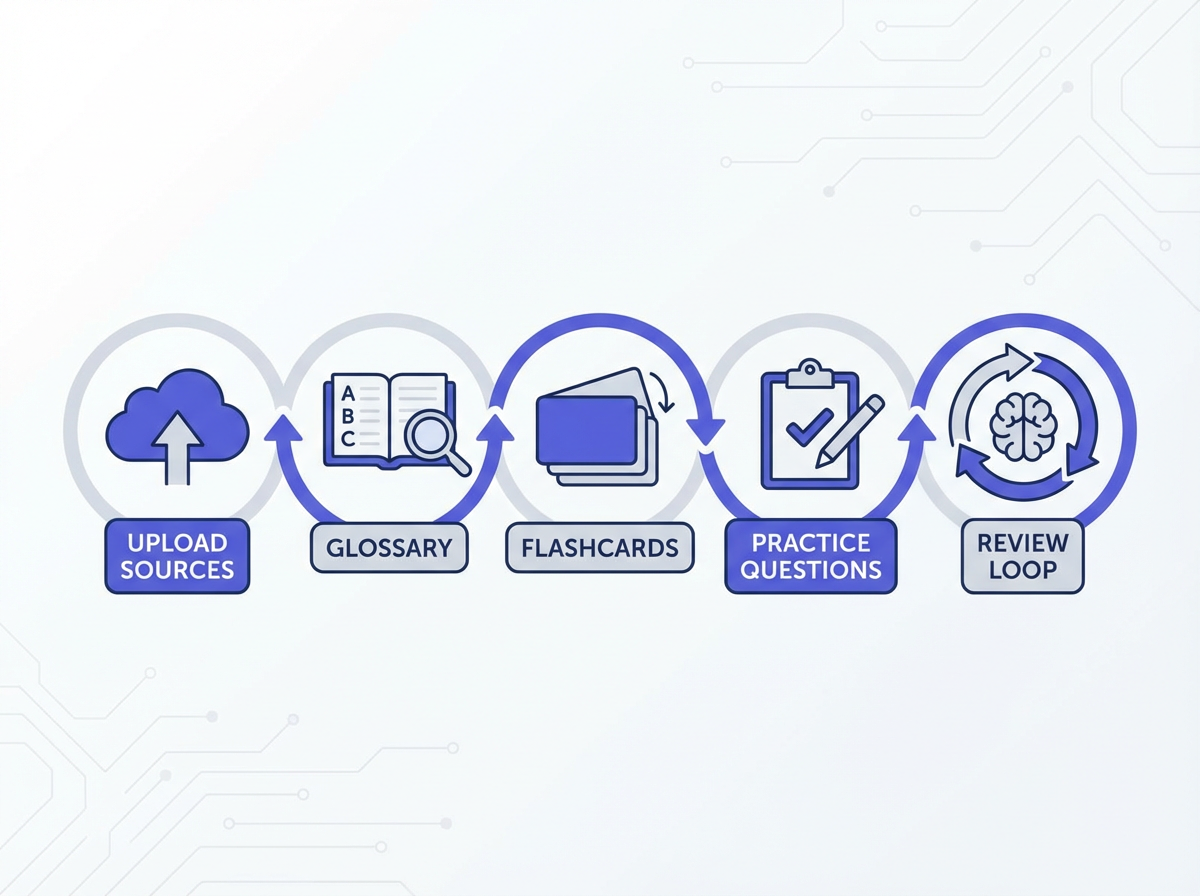
NotebookLM can act like a tutor for your own material. You can turn sources into a study guide with definitions, key terms, flashcards, and practice questions. This works for exams, onboarding, and certification prep.
How to do it
- Upload your textbook chapters, lecture notes, or internal docs.
- Ask for a glossary and a concept list.
- Ask for questions with answers and citations.
Copy-ready prompt
Prompt: “Create a study guide from the sources. Include: (1) a glossary of 20 key terms with 1-sentence definitions, (2) 10 flashcards in Q/A format, (3) 10 practice questions with short answers, and (4) citations for every answer.”
Extra step for faster learning
- Ask for spaced review: “Group flashcards into Easy, Medium, Hard based on how often the sources repeat the concept.”
Hack 6: Extract Quotes, Stats, and Claims Into a Reusable Evidence Bank
If you write reports or content, you need proof. NotebookLM can pull quotes and stats, then store them in a clean table format. You can reuse that table across drafts.
How to do it
- Ask for direct quotes only, not paraphrases.
- Ask for a table with claim type, quote, and source reference.
- Ask the model to flag weak evidence like opinions or vague statements.
Copy-ready prompt
Prompt: “Create an evidence bank as a table with columns: Claim, Direct quote, Metric (if any), Source, Section/page (if available), and Confidence (High/Medium/Low). Use only text found in the sources.”
How to use the evidence bank
- Paste the table into your draft as a reference.
- Use it to build charts and callouts.
- Use it to defend statements in reviews.
Hack 7: Compare Two Sources to Spot Conflicts and Gaps
Research often includes disagreement. One report says one thing. Another report says the opposite. NotebookLM can compare sources and show where they align or conflict. This helps you write balanced content and avoid false certainty.
How to do it
- Upload both sources into the same notebook.
- Ask for a comparison table with citations.
- Ask for possible reasons for differences, but keep it labeled as inference.
Copy-ready prompt
Prompt: “Compare Source A and Source B on these points: definitions, key claims, data, and recommendations. Output a table with: Topic, Source A quote + citation, Source B quote + citation, Agreement/Conflict, and Notes. If you infer a reason, label it ‘Inference.’”
What to do after you see conflicts
- Add a third source that can confirm one side.
- Write a section called “What experts disagree on” and cite both.
- Avoid absolute language if your sources disagree.
Hack 8: Turn Meeting Notes Into Action Items With Owners and Deadlines
NotebookLM can convert messy notes into a clean action list. This is useful for managers, founders, and project leads. You can also use it for client calls and interviews.
How to do it
- Paste meeting notes or upload a transcript.
- Ask for decisions, action items, risks, and open questions.
- Ask for a follow-up email draft that matches the action list.
Copy-ready prompt
Prompt: “From these notes, extract: (1) Decisions made, (2) Action items with Owner, Due date (if stated), and Next step, (3) Risks, (4) Open questions. Then draft a follow-up email that lists action items in bullets. Do not invent owners or dates. If missing, write ‘Unassigned’ or ‘No date stated.’”
Pro tip
- If your notes include names, ask for a people list with roles.
Hack 9: Create Reusable Prompt Templates for Repeat Work
Most work repeats. You write the same type of blog post, the same type of report, or the same type of SOP. A prompt template turns NotebookLM into a repeatable system. This reduces time and improves consistency.
How to do it
- Pick a repeat task (example: weekly research brief).
- Define required sections and output format.
- Include strict rules like “use citations” and “do not guess.”
Copy-ready template prompt
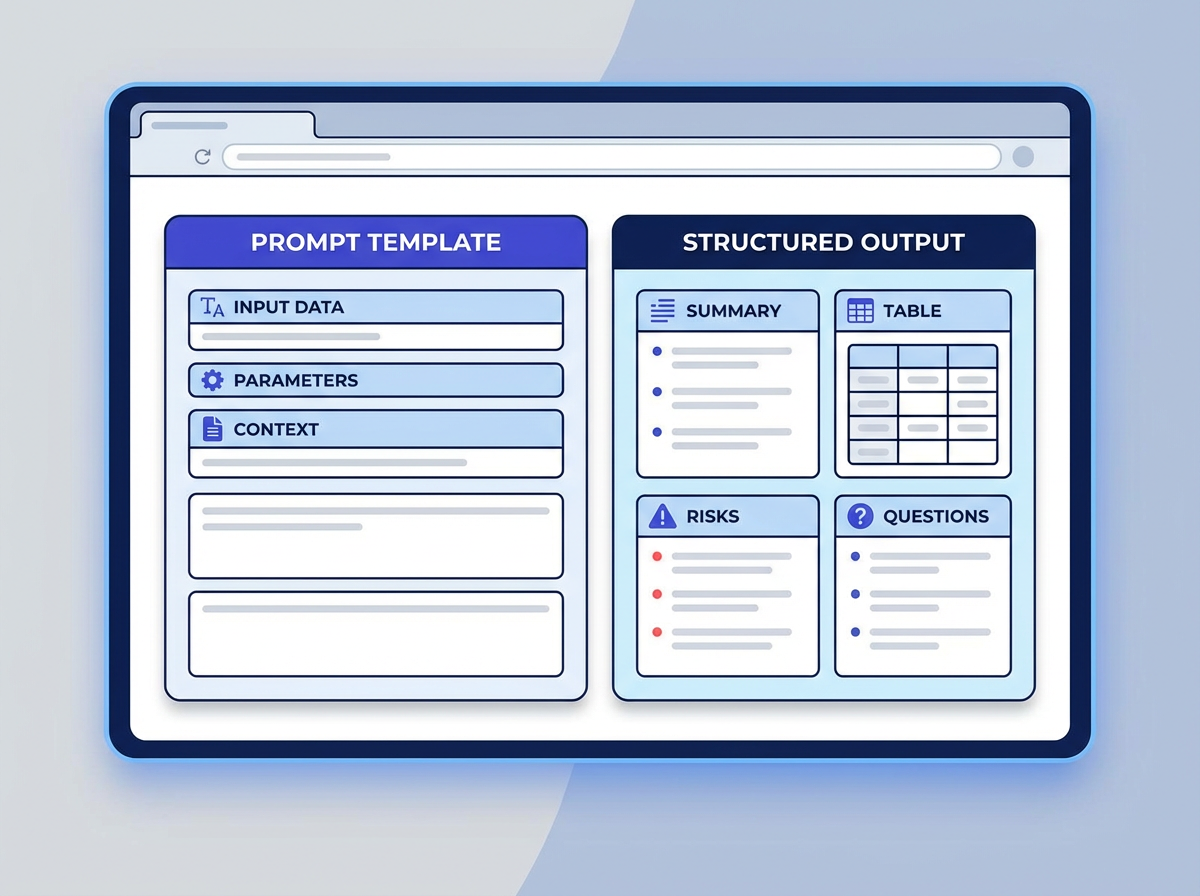
Prompt: “You are my research assistant. Use only the sources in this notebook. Output in this format:
- Summary: 5 bullets with citations
- Key data: table of metrics with citations
- Risks: 5 bullets with citations
- Open questions: list what the sources do not answer
- Next actions: 5 steps I can take this week
Rules: If a point lacks support, label it ‘Not supported by sources.’ Keep sentences short and direct.”
Where templates help most
- Content briefs for writers
- Client research packs
- Internal SOP drafts
- Study plans
Hack 10: Run a “Publish-Ready” Quality Check Before You Share
A final check prevents errors. NotebookLM can act as a reviewer that checks support, clarity, and missing context. This hack matters most when you publish content or send a report to a client.
How to do it
- Paste your draft into the notebook (or add it as a source).
- Ask NotebookLM to check each claim against the evidence bank.
- Ask for a list of sentences that need citations or edits.
Copy-ready prompt
Prompt: “Run a publish-ready check on this draft using the notebook sources. Output:
- Unsupported claims: list each sentence that lacks source support
- Weak wording: list vague terms and suggest clearer replacements
- Missing context: what a reader needs to understand the claims
- Suggested citations: match claims to sources
Rules: Do not add new facts. Use short sentences.”
Extra check for SEO and readability
- Ask: “Rewrite long sentences into short subject-verb-object sentences. Keep meaning the same.”
- Ask: “Create a 155-character meta description that matches the draft.”
Frequently Asked Questions (FAQs)
What is NotebookLM best used for?
NotebookLM works best for research and writing tasks that must stay tied to your uploaded sources. It helps with summaries, Q&A, outlines, and draft support.
How do I stop NotebookLM from making unsupported claims?
Use citation-first prompts and require direct quotes. Also ask it to label anything as “Not supported by sources” when proof is missing.
Can I use NotebookLM for studying?
Yes. You can turn your notes into glossaries, flashcards, and practice questions. Ask for citations so you can verify every answer.
How many sources should I add to one notebook?
Add enough sources to cover your topic without overlap. Start with 5 to 15 sources, then expand if the source map shows gaps.
Can NotebookLM help me write blog posts faster?
Yes. Use an outline prompt, an evidence bank prompt, and a publish-ready check. This flow speeds drafting and reduces edits.
What is the fastest way to get value from a new notebook?
Create a source map first. Then ask 5 to 10 ladder questions. Then build an outline and an evidence bank for your final output.
Final Thoughts
These 10 NotebookLM Hacks You must Know help you get better answers from your own sources. They also help you write faster with fewer mistakes. Start with a source map, use citation-first prompts, and finish with a publish-ready check. If you want a quick win today, pick one real task, add your sources, and run Hack 1 plus Hack 10. Then save your best prompt as a template and reuse it on your next project.
Call to action: Open NotebookLM now, create one notebook for your next project, and try the citation-first prompt from Hack 2. Then compare your output quality to your usual workflow.
Frequently Asked Questions

Written by
Raman Singh
Raman Singh is a highly skilled marketing professional who serves as the head of marketing at Copyrocket AI. With years of experience in the field, Raman has developed a deep understanding of all asp
View all postsYour AI Marketing Agents
Are Ready to Work
Stop spending hours on copywriting. Let AI craft high-converting ads, emails, blog posts & social media content in seconds.
Start Creating for FreeNo credit card required. 50+ AI tools included.
Related Articles
 General
NotebookLM For Coders: Turn Docs Into Faster Code
Code work often fails for a simple reason. You do not have the right context at the right time. You read docs in one tab, skim tickets in another tab, and then...

 General
How to Optimize for AI Search in 2026: The Complete Guide
AI search has shifted from experimental feature to primary search method for millions of users. ChatGPT Search, Google AI Overviews, Perplexity, Claude, and Gem...
 General
Claude Opus 4.6 Review: Here's What New!
Claude Opus 4.6 from Anthropic draws attention because teams want an AI model that writes better code, follows instructions, and stays consistent across long se...