
50 NotebookLM Use Cases You Can Copy Today

Raman Singh
Raman Singh is a highly skilled marketing professional who serves as the head of marketing at Copyrocket AI

NotebookLM helps you work with your own sources. You upload documents, notes, links, or transcripts. You then ask questions, request summaries, and build outputs that stay grounded in what you provided.
This post lists 50 NotebookLM use cases you can apply at work, in school, and for personal projects. Each section gives clear actions and prompt ideas you can copy.
Key Takeaways
- NotebookLM is used for source-grounded Q&A, summaries, and writing based on your uploaded materials.
- You can use NotebookLM for research review, meeting follow-ups, study guides, and project planning.
- Strong results come from clean sources, clear questions, and requests for quotes and page references.
- You can ask NotebookLM to compare sources, find gaps, and extract action items and decisions.
- Alternatives include tools like Perplexity, ChatGPT with file uploads, Claude, and Microsoft Copilot, but NotebookLM centers on your sources.
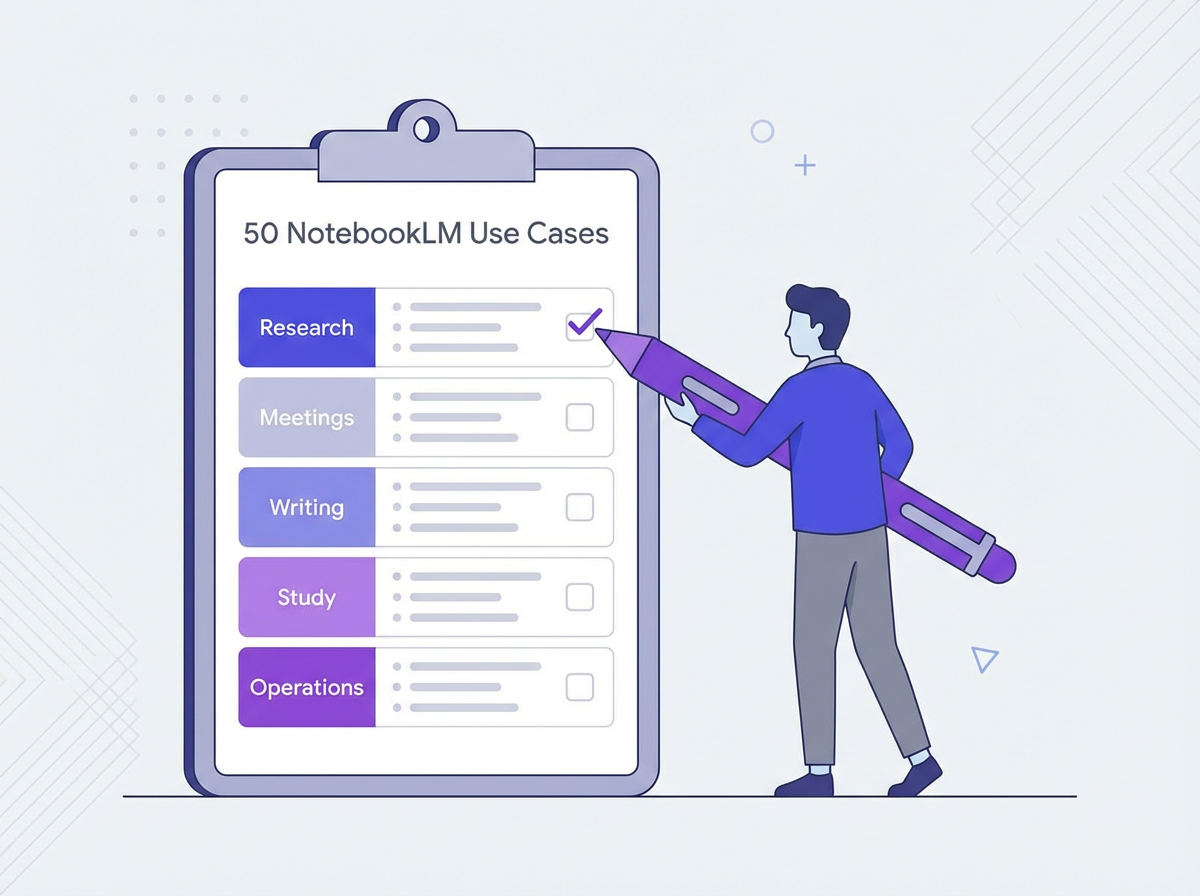
- Use the 50 use cases below as a checklist. Start with 3 use cases and repeat them weekly.
Research and Reading: 10 NotebookLM Use Cases
Use NotebookLM as a research assistant for your own materials. Add papers, PDFs, web pages, and notes. Then ask questions that force structure, comparison, and evidence.
1) Summarize a long report into a one-page brief
- Sources to add: PDF report, appendix, related memo.
- Ask: “Write a one-page brief with: purpose, key findings, risks, and next steps. Include 5 quotes with section names.”
2) Create an executive summary for leadership
- Sources to add: Strategy doc, metrics deck, project update.
- Ask: “Create an executive summary in 8 bullets. Each bullet must include one metric or named fact from the sources.”
3) Extract key claims and supporting evidence
- Sources to add: Research paper, supporting studies.
- Ask: “List the top 10 claims. Under each claim, add the supporting evidence and where it appears.”
4) Compare two or more sources for agreement and conflict
- Sources to add: Two papers, two vendor proposals, or two policy drafts.
- Ask: “Create a comparison table: topic, source A stance, source B stance, conflict, and what data would resolve it.”
5) Build a literature review outline
- Sources to add: 5–15 papers and your notes.
- Ask: “Draft a literature review outline with 6 sections. Under each section, list which sources support it and why.”
6) Identify gaps and unanswered questions
- Sources to add: Your research folder and prior conclusions.
- Ask: “List 15 gaps. For each gap, add: why it matters, which source hints at it, and a testable question.”
7) Turn reading into flashcards
- Sources to add: Chapter PDF, lecture notes.
- Ask: “Create 30 Q/A flashcards. Keep each answer under 25 words. Use terms exactly as written in the sources.”
8) Create a glossary of key terms
- Sources to add: Textbook chapter, internal wiki export.
- Ask: “Extract key terms and write a glossary. Include a short definition and one example sentence from the sources.”
9) Make a timeline from scattered documents
- Sources to add: Emails, meeting notes, incident reports.
- Ask: “Create a timeline with dates, events, owners, and evidence quotes. Flag missing dates.”
10) Draft annotated bibliography entries
- Sources to add: Papers and citation info.
- Ask: “Write an annotated bibliography for each source: summary, key method, strengths, limits, and best quote.”
Meetings and Communication: 10 NotebookLM Use Cases
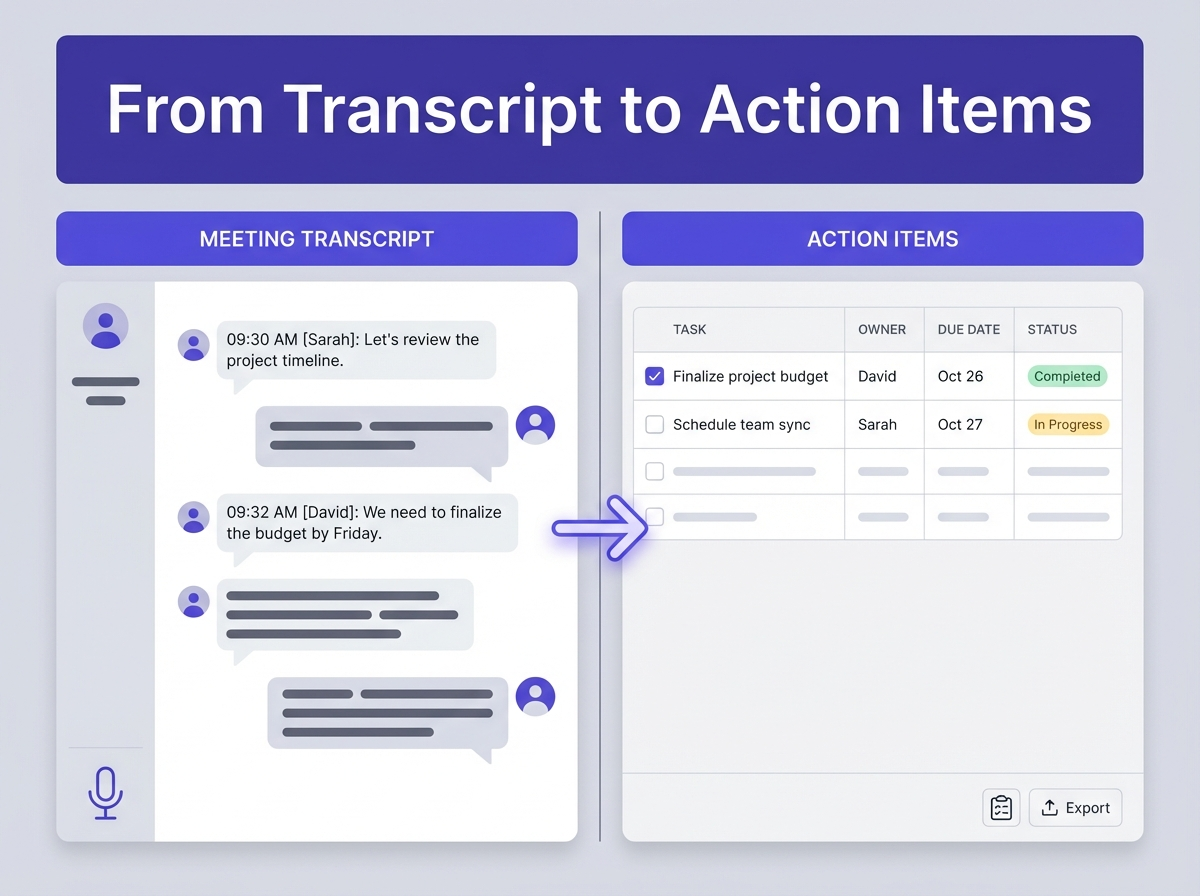
NotebookLM works well with transcripts, agendas, and follow-up notes. You can turn messy meeting content into clear actions, decisions, and messages.
11) Turn a meeting transcript into action items
- Sources to add: Transcript, agenda, shared notes.
- Ask: “List action items with owner, due date, and exact supporting quote. If no due date exists, mark ‘TBD’.”
12) Create a decision log
- Sources to add: Weekly meeting notes.
- Ask: “Create a decision log table: date, decision, decision owner, impact, and open questions.”
13) Draft a follow-up email
- Sources to add: Notes and action items.
- Ask: “Write a follow-up email in 120–180 words. Include actions, owners, dates, and next meeting time if present.”
14) Create a stakeholder update
- Sources to add: Project plan, status notes, metrics.
- Ask: “Write a stakeholder update with: progress, blockers, risks, and next steps. Use 6 bullets and 2 metrics.”
15) Prepare talking points for a meeting
- Sources to add: Prior emails, deck, requirements.
- Ask: “Create talking points for a 10-minute update. Include 3 key messages and 5 likely questions with answers.”
16) Summarize customer calls for CRM notes
- Sources to add: Call transcript and account history.
- Ask: “Write CRM notes: customer goals, pain points, current tools, objections, next steps, and exact quotes.”
17) Create a FAQ from repeated questions
- Sources to add: Support tickets, chat logs.
- Ask: “Draft a FAQ with 12 questions. Each answer must cite the ticket text that supports it.”
18) Draft a press Q&A for announcements
- Sources to add: Press release draft, product spec.
- Ask: “Create 15 press questions and short answers. Keep answers under 40 words and stick to the sources.”
19) Build a communication plan
- Sources to add: Project milestones, stakeholder list.
- Ask: “Create a communication plan: audience, message, channel, cadence, and owner. Include 10 rows.”
20) Convert messy notes into a clean memo
- Sources to add: Raw notes, screenshots text, voice transcript.
- Ask: “Write a memo with headings: context, problem, options, recommendation, and risks. Use short sentences.”
Writing and Content Production: 10 NotebookLM Use Cases
NotebookLM helps you write faster when you already have source material. It keeps your draft aligned with facts in your documents. It also helps you reuse content across formats.
21) Turn research notes into a blog outline
- Sources to add: Notes, links, competitor snippets you saved.
- Ask: “Create a blog outline with H2 and H3 sections. Add bullet points under each section and cite sources.”
22) Draft a blog post from your sources
- Sources to add: Outline, references, product docs.
- Ask: “Write a 1,500-word draft. Use short paragraphs. Include examples and avoid claims not in sources.”
23) Create a content brief for a writer
- Sources to add: SEO notes, product positioning, audience notes.
- Ask: “Write a content brief: goal, audience, key points, must-use facts, internal links, and do-not-say list.”
24) Repurpose a webinar into multiple assets
- Sources to add: Webinar transcript, slides.
- Ask: “Create: 1 blog outline, 10 social posts, 5 email subject lines, and 6 short video clip titles.”
25) Create a style guide from existing content
- Sources to add: 10 examples of your best posts or docs.
- Ask: “Extract a style guide: tone rules, sentence length, banned words, formatting rules, and examples.”
26) Draft product release notes
- Sources to add: Jira tickets, changelog notes, PRD.
- Ask: “Write release notes with: what changed, who it helps, how to use it, and known limits.”
27) Write help center articles from internal docs
- Sources to add: Internal SOP, screenshots text, known issues list.
- Ask: “Write a help article with steps, warnings, and troubleshooting. Use numbered steps and short sentences.”
28) Create a case study draft
- Sources to add: Customer interview transcript, metrics, timeline.
- Ask: “Write a case study: problem, approach, results, and quote highlights. Include 3 metrics with context.”
29) Generate interview questions for SMEs
- Sources to add: Topic notes, product docs, competitor notes.
- Ask: “Create 20 SME interview questions. Group them by: basics, process, metrics, risks, and examples.”
30) Create a fact-check list for a draft
- Sources to add: Draft post, reference sources.
- Ask: “List every factual claim in the draft. For each, show the supporting source quote or mark ‘no support found’.”
School and Study: 10 NotebookLM Use Cases
NotebookLM can act as a study partner for your course materials. It can explain concepts using your textbook and lectures. It can also create practice questions and revision plans.
31) Create a study guide for an exam
- Sources to add: Syllabus, lecture slides, readings.
- Ask: “Create a study guide with: key topics, key formulas, common mistakes, and 20 practice questions.”
32) Generate practice quizzes with answers
- Sources to add: Chapters and lecture notes.
- Ask: “Create a 25-question quiz: 15 multiple choice, 10 short answer. Provide an answer key with quotes.”
33) Explain a concept using only course wording
- Sources to add: Course text and professor notes.
- Ask: “Explain ‘[concept]’ in 8 sentences using the same terms used in the sources. Add 2 examples.”
34) Turn lecture transcripts into structured notes
- Sources to add: Transcript, slides.
- Ask: “Rewrite as Cornell notes: cues, notes, and summary. Keep each bullet under 18 words.”
35) Build a reading schedule
- Sources to add: Syllabus with dates and workload.
- Ask: “Create a weekly schedule with tasks and time estimates. Flag heavy weeks and suggest swaps.”
36) Draft an essay outline with citations
- Sources to add: Required readings and your thesis notes.
- Ask: “Draft an essay outline with 5 sections. Under each, add 2 quotes and explain how they support the point.”
37) Check if your argument matches your sources
- Sources to add: Your draft and assigned readings.
- Ask: “List where my draft overstates or adds claims. Suggest edits that match the sources.”
38) Create lab report sections from raw notes
- Sources to add: Lab notes, results table, rubric.
- Ask: “Draft Methods and Results. Use the rubric language. Do not invent numbers.”
39) Build a citation-ready quote bank
- Sources to add: PDFs with page numbers if possible.
- Ask: “Extract 25 quotes by theme. Include page/section. Keep each quote under 40 words.”
40) Create a peer discussion guide
- Sources to add: Reading packet.
- Ask: “Create 10 discussion questions. For each, add a short ‘what to look for’ note and a supporting quote.”
Business Operations and Teams: 10 NotebookLM Use Cases
Teams use NotebookLM to reduce time spent searching. You can centralize policies, SOPs, and project docs. You can then ask for answers that point back to the source text.
41) Create an onboarding pack for new hires
- Sources to add: SOPs, org charts, tool guides, policies.
- Ask: “Create a 2-week onboarding plan with daily tasks, links, and a checklist. Add a glossary of team terms.”
42) Build a policy Q&A assistant for HR docs
- Sources to add: Employee handbook, benefits docs.
- Ask: “Answer: ‘What is the PTO policy for contractors?’ Include the exact policy quote and any exceptions.”
43) Summarize a contract for business review
- Sources to add: Contract PDF, prior redlines.
- Ask: “Summarize: term, renewal, fees, termination, liability, data handling, and SLAs. Quote the clause text.”
44) Extract requirements from a PRD
- Sources to add: PRD, user stories, acceptance criteria.
- Ask: “List functional requirements and non-functional requirements. Convert each into a testable statement.”
45) Create a risk register from project docs
- Sources to add: Status updates, incident notes, roadmap.
- Ask: “Create a risk register: risk, cause, impact, likelihood, mitigation, owner, and evidence quote.”
46) Prepare an audit-ready evidence list
- Sources to add: Policies, logs summaries, process docs.
- Ask: “Map controls to evidence. Output a table: control, evidence doc, location in doc, and owner.”
47) Create a sales battlecard from internal and competitor notes
- Sources to add: Competitor comparisons, win/loss notes, pricing notes.
- Ask: “Create a battlecard: positioning, key differentiators, common objections, and short rebuttals with proof.”
48) Build a customer implementation plan
- Sources to add: SOW, onboarding checklist, technical docs.
- Ask: “Create a 30-60-90 day plan with milestones, dependencies, and roles. Keep it client-ready.”
49) Turn support tickets into a bug report summary
- Sources to add: Ticket exports, logs, known issues.
- Ask: “Cluster issues by theme. For each cluster, list steps to reproduce, impact, and top affected versions.”
50) Create a weekly ops dashboard narrative
- Sources to add: KPI notes, incident notes, sprint summary.
- Ask: “Write a weekly narrative: what improved, what worsened, why, and what we will do next week. Use 8 bullets.”
What Are Some Use Cases for NotebookLM?
NotebookLM supports many tasks, but the best results come from use cases that depend on your own documents. The list below gives a simple way to choose.
High-value use cases
- Summaries that include quotes and section references
- Comparisons across two or more documents
- Action items and decision logs from transcripts
- Study guides, flashcards, and practice quizzes from course files
- Policy and SOP Q&A for team operations
Use cases that need extra care
- Legal or medical interpretation without a qualified reviewer
- Any output that requires up-to-the-minute facts if your sources are old
- Any output that needs data you did not upload
For What Is NotebookLM Used?
People use NotebookLM to read, understand, and write from a set of sources. It acts like a workspace that answers questions from your uploaded material. It also helps you turn that material into structured outputs such as briefs, outlines, FAQs, and checklists.
Common ways teams use NotebookLM
- Knowledge work: Summaries, comparisons, decision tracking
- Content work: Briefs, drafts, repurposing, fact-check lists
- Learning: Study guides, quizzes, concept explanations
- Operations: Onboarding, SOP Q&A, risk registers
What Can I Ask NotebookLM?
You can ask NotebookLM questions that point to your sources. You can ask for explanations, lists, tables, and drafts. You can also ask it to quote the exact lines it used so you can verify the output.
Copy-and-paste prompts that work
- “Summarize this in 10 bullets. Add one supporting quote per bullet.”
- “What are the top 7 risks mentioned? Quote the line for each risk.”
- “Create a table that compares these two documents by topic and conclusion.”
- “List all deadlines and owners. If missing, mark as TBD and cite the closest text.”
- “Draft an email to [audience]. Use only facts in the sources. Keep it under 160 words.”
- “Find contradictions across sources. Show the conflicting quotes side by side.”
Questions that improve accuracy
- “What does the source say exactly?”
- “Where does it say that?”
- “Which parts are uncertain or missing?”
- “What assumptions did you make? Remove them.”
Is There Any Other AI Like NotebookLM?
Yes. Several tools support document Q&A and summarization. The main difference is how each tool handles sources, citations, and workspace organization.
Common alternatives
- ChatGPT (with file uploads): Strong for drafting and analysis across many file types.
- Claude (with files): Strong for long documents and careful rewriting.
- Perplexity: Strong for web research with citations, but it focuses more on web results than your private source set.
- Microsoft Copilot: Strong inside Microsoft 365 for email, docs, and meetings if your org uses it.
- Google Gemini tools: Often pair well with Google Drive content and Google Workspace flows.
How to choose
- Pick NotebookLM when your priority is “use my sources and keep me grounded in them.”
- Pick a web-first tool when your priority is “find new sources fast.”
- Pick a suite tool when your priority is “work inside my company apps.”
Frequently Asked Questions (FAQs)
What is NotebookLM best for?
NotebookLM is best for summaries, Q&A, and writing that relies on your uploaded sources. It works well for briefs, study guides, and meeting action items.
Can NotebookLM replace search?
NotebookLM can reduce searching inside your document set. It does not replace web search when you need new or current information you did not upload.
How do I get more accurate answers in NotebookLM?
Add clean sources, ask one question at a time, and request quotes or section references. Ask it to list unknowns and missing data.
What types of files should I add to a notebook?
Add the files that contain the facts you need. Common choices include PDFs, meeting transcripts, SOPs, lecture notes, and project docs.
Is NotebookLM good for students?
Yes. Students use it for study guides, flashcards, practice quizzes, and essay outlines that cite assigned readings and lecture content.
How do I start if I feel stuck?
Create one notebook for one goal. Add 5 to 15 sources. Then run three prompts: summary, key questions, and action list.
Final Thoughts
These 50 NotebookLM use cases give you a simple playbook for research, meetings, writing, study, and operations. Start with one notebook and one output you need this week. Add your best sources, ask for a clear format, and request quotes for proof. If you want faster results, pick three use cases from this list, save your prompts, and repeat the same workflow every week.
Call to action: Choose 3 use cases above, create one notebook today, and run the copy-and-paste prompts. Track the time you save and expand from there.
Frequently Asked Questions

Written by
Raman Singh
Raman Singh is a highly skilled marketing professional who serves as the head of marketing at Copyrocket AI. With years of experience in the field, Raman has developed a deep understanding of all asp
View all postsYour AI Marketing Agents
Are Ready to Work
Stop spending hours on copywriting. Let AI craft high-converting ads, emails, blog posts & social media content in seconds.
Start Creating for FreeNo credit card required. 50+ AI tools included.
Related Articles
 General
NotebookLM For Coders: Turn Docs Into Faster Code
Code work often fails for a simple reason. You do not have the right context at the right time. You read docs in one tab, skim tickets in another tab, and then...

 General
How to Optimize for AI Search in 2026: The Complete Guide
AI search has shifted from experimental feature to primary search method for millions of users. ChatGPT Search, Google AI Overviews, Perplexity, Claude, and Gem...
 General
Claude Opus 4.6 Review: Here's What New!
Claude Opus 4.6 from Anthropic draws attention because teams want an AI model that writes better code, follows instructions, and stays consistent across long se...