
How to Create Better Slide Decks in NotebookLM

Raman Singh
Raman Singh is a highly skilled marketing professional who serves as the head of marketing at Copyrocket AI

You can turn notes, PDFs, docs, and links into a clean slide deck in NotebookLM in minutes.
You do not need a separate slide outline tool. You need a clear source set, the right Slide Deck settings in Studio, and a simple review flow.
This guide shows How to create Slide deck in NotebookLM (using its settings) step by step, with prompts you can copy, plus rules that keep your deck short, clear, and easy to present.
Key Takeaways
- Use Studio → Slide Deck to generate slides from your uploaded sources and notes.
- Set the goal, audience, slide count, and tone before you generate to reduce rewrites.
- Ask for one idea per slide, short bullets, and speaker notes to keep the deck presentable.
- Use citations from sources so each slide stays grounded in your material.
- Apply the 10/20/30 rule by controlling slide count, time, and text size.
- Run a quality pass: fix structure, remove repeats, and tighten titles before export.
What the Slide Deck feature does in NotebookLM (and what it does not)
NotebookLM can generate a slide deck from the sources you add to a notebook. It can also use your notes and your prompts to shape the structure. The Slide Deck output works best when you give it a clear purpose and limits.
Does NotebookLM generate slides?
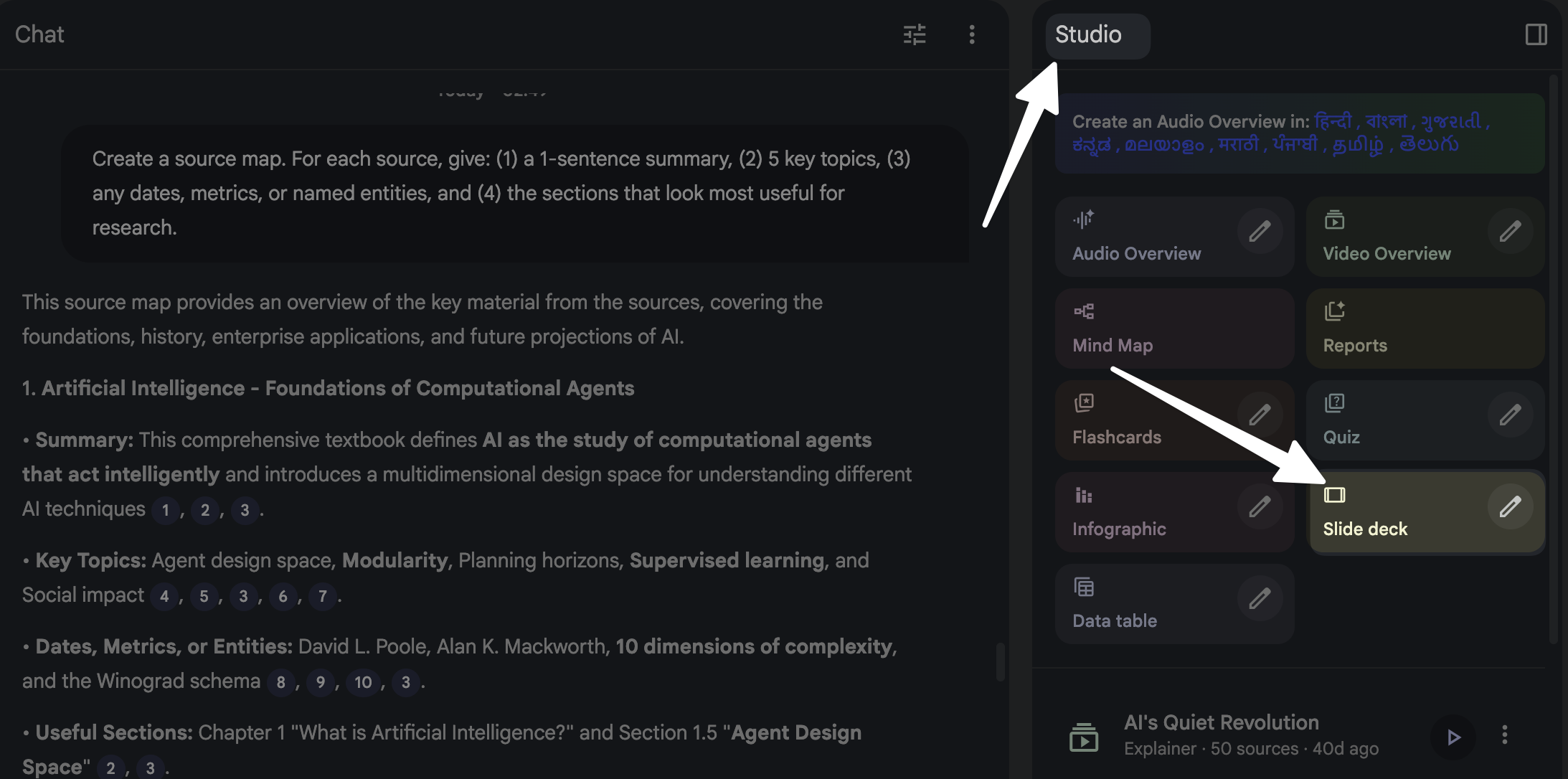
Yes. NotebookLM can generate a slide deck inside the Studio panel. It creates slide titles and bullet points. It can also add speaker notes if you ask. It can include citations that point back to your sources.
What you still need to do
- Pick the right sources. Bad sources create weak slides.
- Set the deck goal and audience. A generic goal creates generic slides.
- Review and edit. AI drafts fast, but you still own accuracy and clarity.
- Move the final content into your slide tool if you need a branded theme.
Before you generate: set up sources the right way
Your slide deck quality depends on your source quality. NotebookLM works best when it can quote and summarize clear material. Do this setup once, and you will reuse it for every deck.
Create a notebook for one deck topic
- Create a new notebook with a specific name, like “Q1 Sales Review Deck” or “Product Launch Brief Deck.”
- Keep one deck topic per notebook. This reduces off-topic slides.
Add sources that match your deck goal
- Add 3 to 10 strong sources instead of 30 weak sources.
- Prefer sources with headings, tables, and clear sections.
- Use primary sources when possible: reports, meeting notes, research docs, product specs.
Clean and label your inputs
- Rename files with clear labels: “Customer_Interviews_Summary.pdf” beats “final_v7.pdf.”
- Remove duplicate versions. Duplicates cause repeated bullets.
- If you have one long doc, add a short note that lists the key sections you want in the deck.
Add a “Deck Brief” note (this is your control lever)
Create a note in the notebook called Deck Brief. Keep it short and direct. Use this template:
- Audience: (example: VP Sales and regional managers)
- Goal: (example: align on Q1 results and Q2 priorities)
- Time limit: (example: 10 minutes)
- Slide count: (example: 10 slides)
- Must include: (example: revenue, pipeline, top wins, top risks, next steps)
- Must avoid: (example: deep technical detail, long tables)
- Style: (example: short bullets, plain language, one idea per slide)
How to use Slide Deck in NotebookLM (Studio workflow)
NotebookLM puts Slide Deck generation in the Studio panel. You can start a deck, then adjust it with prompts and edits. This section shows the exact flow you can repeat.
Step 1: Open Studio and choose Slide Deck
- Open your notebook.
- Find the Studio panel.
- Select Slide Deck to start.
Step 2: Use settings to control the output
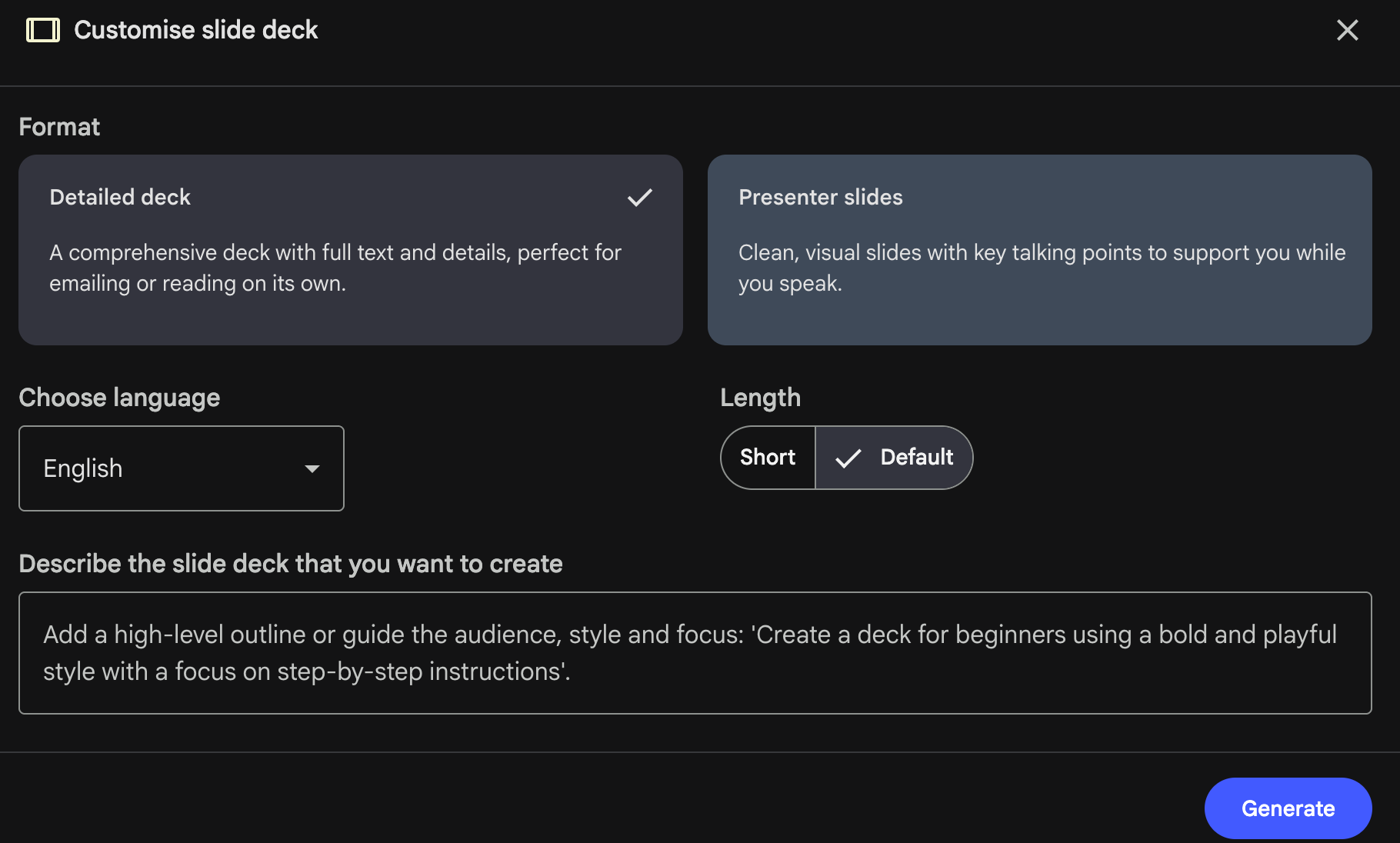
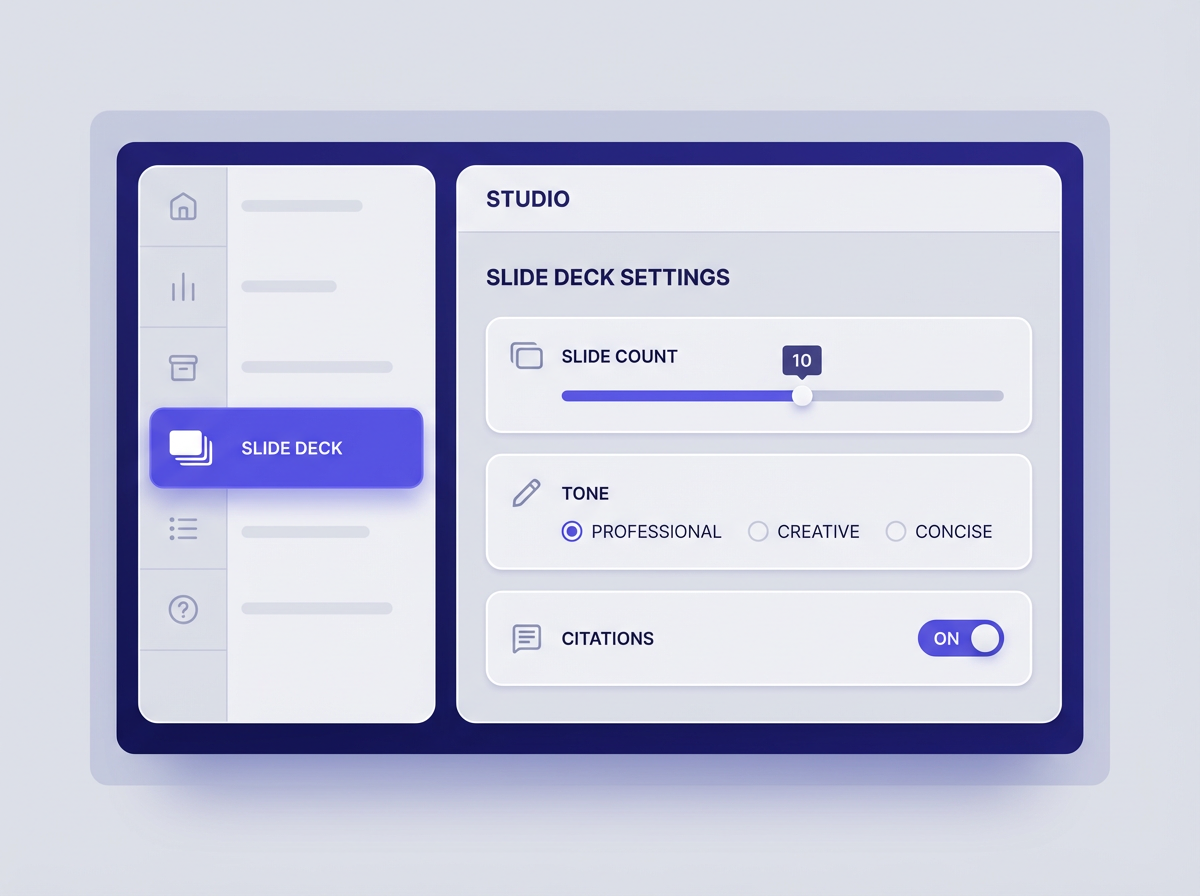
NotebookLM can produce many styles of decks. Settings and prompt constraints decide what you get. Use these controls before you generate:
- Purpose: pitch, status update, training, research summary, proposal.
- Audience level: executive, mixed, beginner, technical.
- Slide count: set a hard number, like 10, 12, or 15.
- Formatting: short titles, 3 to 5 bullets per slide, 6 to 12 words per bullet.
- Citations: ask for citations per slide or per key claim.
- Speaker notes: ask for 2 to 4 short sentences per slide.
Step 3: Generate the first draft deck
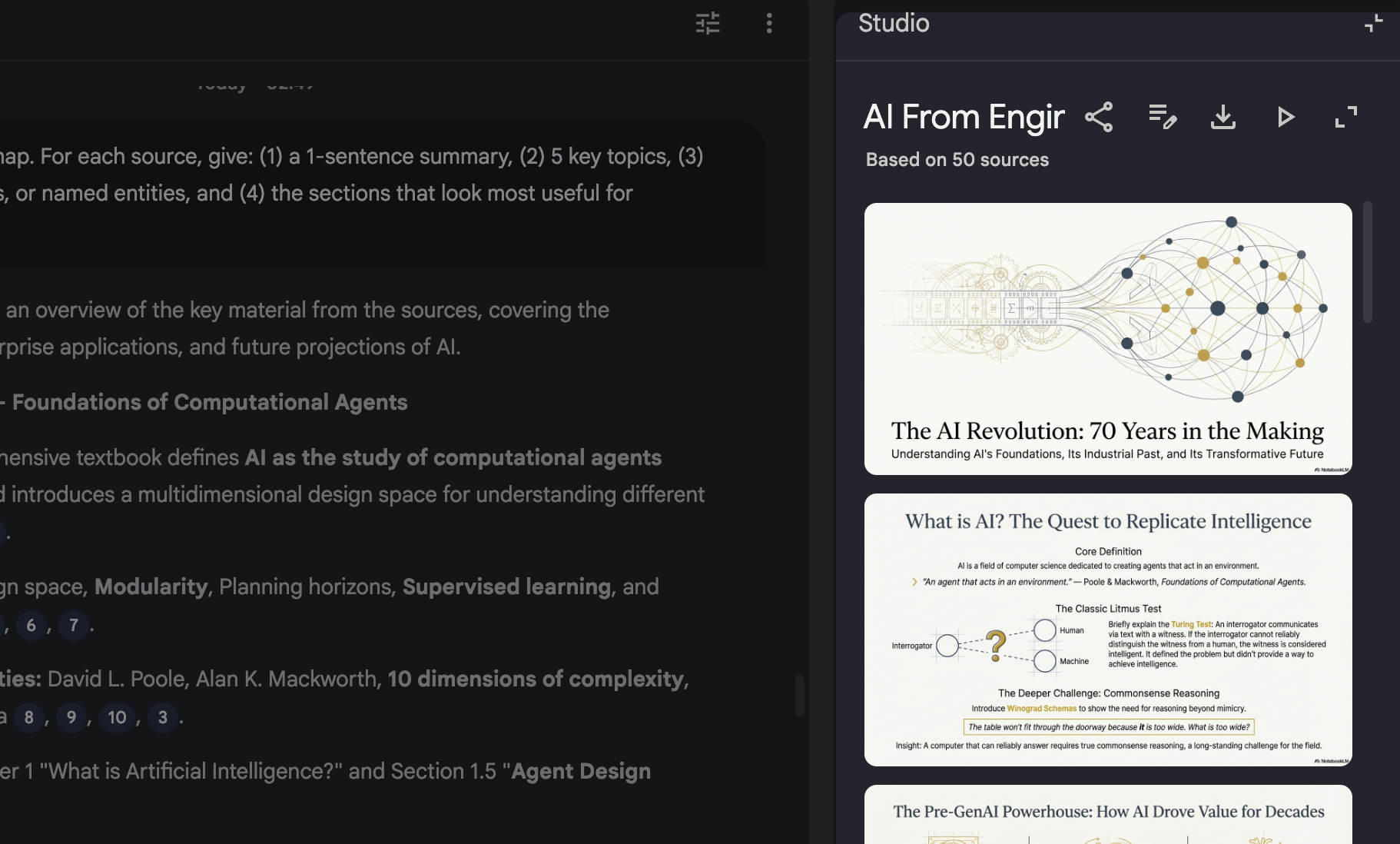
Start with a simple prompt that matches your Deck Brief. Here are copy-ready prompts that work well.
Prompt: executive update deck (10 slides)
- Prompt text: “Create a 10-slide executive update slide deck from my sources. Use one idea per slide. Use short titles. Use 3–5 bullets per slide. Add 2–3 speaker notes per slide. Include citations for key numbers and claims.”
Prompt: training deck (12 slides)
- Prompt text: “Create a 12-slide training slide deck for beginners. Define key terms on early slides. Use step-by-step bullets. Add a recap slide and a quiz slide. Keep bullets under 12 words. Include citations.”
Prompt: research summary deck (15 slides)
- Prompt text: “Create a 15-slide research summary slide deck. Start with the problem and why it matters. Then show findings, evidence, and implications. End with recommendations and next steps. Add citations on each slide.”
Step 4: Refine with targeted edits (use the pencil/edit option)
After NotebookLM generates the deck, you will see places where you want tighter structure. Do not regenerate from scratch right away. First, do focused edits with clear instructions.
- If slides feel repetitive: “Remove repeated points. Merge slides 4 and 6. Keep total slides at 10.”
- If slides feel too long: “Reduce each slide to 3 bullets max. Keep meaning. Keep citations.”
- If slides lack action: “Add one ‘Decision needed’ slide and one ‘Next steps’ slide. Use clear owners and dates if sources include them.”
- If slides miss key data: “Add a slide that summarizes the top 5 metrics from the sources, with citations.”
Step 5: Validate citations and claims
Citations keep your deck grounded. You still need to confirm each key claim.
- Open the citation links for numbers, dates, and quotes.
- Check that the slide wording matches the source meaning.
- Replace weak claims like “many users” with sourced numbers when possible.
How do I create a slide deck that looks like a real presentation?
A usable deck has a clear story, clean slide titles, and tight bullets. NotebookLM can draft this, but you need to ask for it in a direct way. Use the structure below so your audience can follow the message fast.
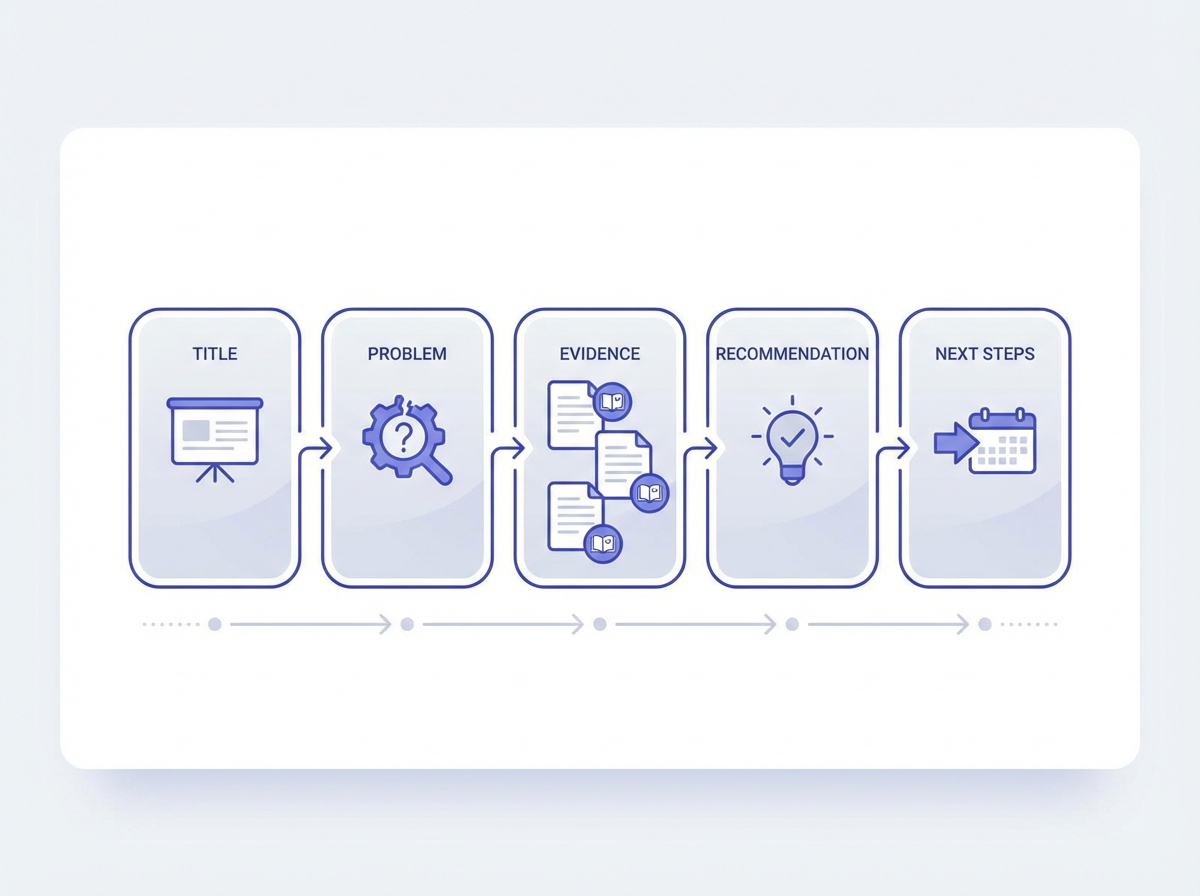
Use a proven slide story structure (simple and clear)
- Slide 1: Title + subtitle + presenter + date
- Slide 2: Agenda or key message
- Slide 3: Problem or goal
- Slides 4–7: Evidence, findings, or progress
- Slide 8: Options or recommendations
- Slide 9: Risks and mitigations
- Slide 10: Next steps + asks
Prompt: force a clean story arc
- Prompt text: “Create a slide deck with this order: Title, Agenda, Goal, Current state, Key findings, Evidence, Recommendation, Risks, Next steps, Q&A. Keep it to 10 slides. Use short titles and short bullets. Add speaker notes.”
Write slide titles as conclusions, not topics
Topic titles sound like labels. Conclusion titles state the point. Ask NotebookLM to do conclusion titles.
- Topic title: “Customer Feedback”
- Conclusion title: “Customers want faster setup and clearer pricing”
Prompt: convert topic titles into conclusion titles
- Prompt text: “Rewrite all slide titles as conclusions. Keep each title under 8 words. Do not change slide count.”
Keep bullets tight (and readable on screen)
- Use 3 to 5 bullets per slide.
- Use 6 to 12 words per bullet.
- Start bullets with strong verbs: “Reduce,” “Increase,” “Launch,” “Fix,” “Measure.”
- Avoid paragraphs. Put detail in speaker notes.
How to create Slide deck in NotebookLM (using its settings) for different use cases
One deck format does not fit every meeting. NotebookLM settings and prompts let you generate the right deck type fast. Use the playbooks below.
Use case 1: A 10-minute executive deck
- Goal: fast decisions
- Slide count: 8–12
- Bullets: 3 per slide
- Speaker notes: 2 sentences per slide
- Must include: decision, impact, next step
Prompt: executive deck with decisions
- Prompt text: “Create a 10-slide executive deck. Each slide must end with one decision, risk, or action. Use 3 bullets per slide max. Add citations for numbers.”
Use case 2: A sales pitch deck
- Goal: show value fast
- Slide count: 10–14
- Slides to include: problem, solution, proof, pricing approach, next step
- Style: benefits first, features second
Prompt: pitch deck structure
- Prompt text: “Create a 12-slide pitch deck. Use this order: Problem, Why now, Solution, How it works, Key benefits, Proof, Case example, Implementation plan, Pricing approach, ROI, Risks, Next step. Keep bullets short.”
Use case 3: A training deck for a team
- Goal: teach a process
- Slide count: 12–20
- Slides to include: definitions, steps, examples, common mistakes, checklist
- Style: step-by-step, simple language
Prompt: training deck with checklist
- Prompt text: “Create a 15-slide training deck. Include a checklist slide and a ‘Common mistakes’ slide. Add one example on each step slide. Put details in speaker notes.”
Use case 4: A research deck with citations on every slide
- Goal: show evidence clearly
- Slide count: 12–18
- Style: claim → evidence → implication
- Citations: on each slide
Prompt: claim-evidence-implication format
- Prompt text: “Create a 15-slide research deck. Each slide must follow: Claim (title), Evidence (bullets), Implication (last bullet). Add citations on every slide.”
Use NotebookLM settings to control quality (slide count, tone, depth, and citations)
Most weak decks come from vague constraints. Strong decks come from clear settings. Use these controls as a checklist each time you generate.
Slide count: set a hard limit
- Pick a number and keep it fixed during edits.
- If content is too much, ask for “merge” and “remove,” not “add more.”
- If content is too thin, add one source or ask for “add one example per section.”
Tone and audience level: choose one
- Executive: outcomes, numbers, decisions
- Team update: progress, blockers, next steps
- Beginner training: definitions, steps, examples
- Technical: specs, constraints, tradeoffs
Depth control: bullets vs speaker notes
- Keep slides short.
- Put explanations in speaker notes.
- Ask for “speaker notes that explain the slide in 20–40 seconds.”
Citations: use them as guardrails
- Ask for citations on key claims and all numbers.
- If a slide has no citation, treat it as a draft idea, not a fact.
- If a source is outdated, remove it and regenerate key slides.
Apply the 10/20/30 rule to NotebookLM slide decks
The 10/20/30 rule is a simple way to keep slide decks short and readable. You can apply it inside NotebookLM by controlling slide count, time, and text length.
What is the 10/20/30 rule for slide decks?
- 10 slides: Keep the core story to about 10 slides.
- 20 minutes: Aim for a 20-minute talk, or less.
- 30-point font: Use large text so slides stay readable.
How to apply it in NotebookLM (practical steps)
- Set slide count to 10 in your Slide Deck request.
- Ask for speaker notes per slide that fit 1 to 2 minutes total per 3 slides.
- Ask for short bullets so your slide tool can use large font.
Prompt: 10/20/30 deck generator
- Prompt text: “Create a 10-slide deck that fits a 20-minute talk. Use 3 bullets per slide max. Keep each bullet under 10 words so I can use large font. Add speaker notes that take 60–90 seconds per slide.”
Fix common problems fast (and regenerate only what you need)
NotebookLM can regenerate content quickly, but full regeneration can reintroduce old issues. Use small, direct fixes first. Then regenerate only the slides that need a rewrite.
Problem: slides feel generic
- Fix: Ask for numbers, names, and examples from sources.
- Prompt: “Replace generic statements with source-based details. Add at least one metric or example per slide where possible. Keep slide count the same.”
Problem: too many bullets per slide
- Fix: Enforce a bullet cap and move detail to notes.
- Prompt: “Limit each slide to 3 bullets. Move extra detail into speaker notes. Do not drop key facts.”
Problem: missing a key section
- Fix: Add one slide and remove one weaker slide.
- Prompt: “Add one slide on [topic]. Remove the least important slide to keep the total at 10. Keep citations.”
Problem: the deck order feels wrong
- Fix: Reorder slides by story logic.
- Prompt: “Reorder slides to follow: context → problem → evidence → recommendation → next steps. Keep slide content, but adjust titles for flow.”
Problem: claims lack citations
- Fix: Ask for citations or mark as assumptions.
- Prompt: “Add citations to every slide. If a claim has no source support, label it as an assumption in the speaker notes.”
Make the deck easier to present (speaker notes, transitions, and Q&A)
A deck that reads well can still present poorly if it lacks transitions. NotebookLM can generate speaker notes that guide your talk. You just need to ask for the right format.
Add speaker notes that match your voice
- Ask for short sentences.
- Ask for one transition line that connects to the next slide.
- Ask for one “say this” line for the key message.
Prompt: speaker notes with transitions
- Prompt text: “Add speaker notes to each slide. Use 3 short sentences: (1) key message, (2) supporting detail, (3) transition to next slide.”
Add a Q&A backup section (without bloating the main deck)
- Keep the main deck short.
- Add 2 to 4 backup slides for likely questions.
- Label them as “Backup” so you can skip them.
Prompt: add backup slides
- Prompt text: “Create 3 backup slides for Q&A. Label them ‘Backup 1–3.’ Use citations. Do not change the first 10 slides.”
Export and finish in your slide tool (Google Slides or PowerPoint)
NotebookLM creates the content. Your slide tool applies theme, layout, and brand. Use this final pass so the deck looks consistent and reads fast.
Formatting checklist for the final deck
- Use one font family.
- Use large text for slide bullets.
- Use one chart style and one color palette.
- Use the same slide layout for the same slide type.
Content checklist for the final deck
- Each slide title states a conclusion.
- Each slide has one main idea.
- Each slide has 3 to 5 bullets max.
- Each key number has a source citation reference in notes or footer.
- The last slide has a clear ask or next step.
Frequently Asked Questions (FAQs)
How to use slide deck in NotebookLM?
Open your notebook, go to Studio, select Slide Deck, set slide count and style in your prompt, then generate. Edit titles, bullets, and speaker notes, and check citations.
How do I create a slide deck?
Add strong sources, write a short Deck Brief note, then generate a deck in Studio with a fixed slide count and clear structure. Review for flow, shorten bullets, and export to your slide tool for design.
Does NotebookLM generate slides?
Yes. NotebookLM generates slide titles and bullets in a Slide Deck draft. It can also generate speaker notes and include citations that link to your sources.
What is the 10/20/30 rule for slide decks?
It means about 10 slides, a 20-minute talk, and 30-point font. In practice, it forces short decks with readable text and clear speaking points.
How do I stop NotebookLM from adding too much text?
Set a bullet limit and a word limit per bullet in your prompt. Ask it to move detail into speaker notes and keep slides to one idea each.
How do I make sure the deck stays accurate?
Use citations for key claims and numbers, then open each citation and confirm the wording matches the source. Remove outdated sources and regenerate only the affected slides.
Final Thoughts
NotebookLM can turn your sources into a clear, usable slide deck fast if you control the inputs and the settings. Use a Deck Brief note, generate from Studio → Slide Deck, lock slide count, and enforce short bullets with speaker notes. Then validate citations and finish design in your slide tool. If you want a repeatable workflow, save the prompts in this post and reuse them for every deck you build.
Call to action: Create one notebook today, add your best sources, and run the 10-slide prompt. Then refine titles into conclusions and present the deck in your next meeting.
Frequently Asked Questions

Written by
Raman Singh
Raman Singh is a highly skilled marketing professional who serves as the head of marketing at Copyrocket AI. With years of experience in the field, Raman has developed a deep understanding of all asp
View all postsYour AI Marketing Agents
Are Ready to Work
Stop spending hours on copywriting. Let AI craft high-converting ads, emails, blog posts & social media content in seconds.
Start Creating for FreeNo credit card required. 50+ AI tools included.
Related Articles
 General
NotebookLM For Coders: Turn Docs Into Faster Code
Code work often fails for a simple reason. You do not have the right context at the right time. You read docs in one tab, skim tickets in another tab, and then...

 General
How to Optimize for AI Search in 2026: The Complete Guide
AI search has shifted from experimental feature to primary search method for millions of users. ChatGPT Search, Google AI Overviews, Perplexity, Claude, and Gem...
 General
Claude Opus 4.6 Review: Here's What New!
Claude Opus 4.6 from Anthropic draws attention because teams want an AI model that writes better code, follows instructions, and stays consistent across long se...