
20 Types of Reports You Can Generate in NoteBookLM

Raman Singh
Raman Singh is a highly skilled marketing professional who serves as the head of marketing at Copyrocket AI
20 Types of Reports You Can Generate in NotebookLM (Using Reports Function in Studio) can turn your sources into clear, shareable outputs in minutes.
You add PDFs, docs, links, notes, or transcripts. You ask for a report in Studio. NotebookLM reads your sources, drafts a structured report, and cites where key points came from. You can then refine the format, tone, and sections with simple instructions
Key Takeaways
- NotebookLM can generate many report formats from your sources using Studio → Reports.
- You can control structure and style by telling NotebookLM what sections to include and what to avoid.
- Reports work best with clean sources like PDFs, meeting notes, research papers, support tickets, and policy docs.
- You can use reports to create slides by generating a slide outline, speaker notes, and visual cues.
- NotebookLM supports many notebooks so you can separate projects, clients, and topics.
- NotebookLM on Chromebook works in the browser so you can research, draft, and share from a lightweight device.
How the Reports function works in NotebookLM Studio
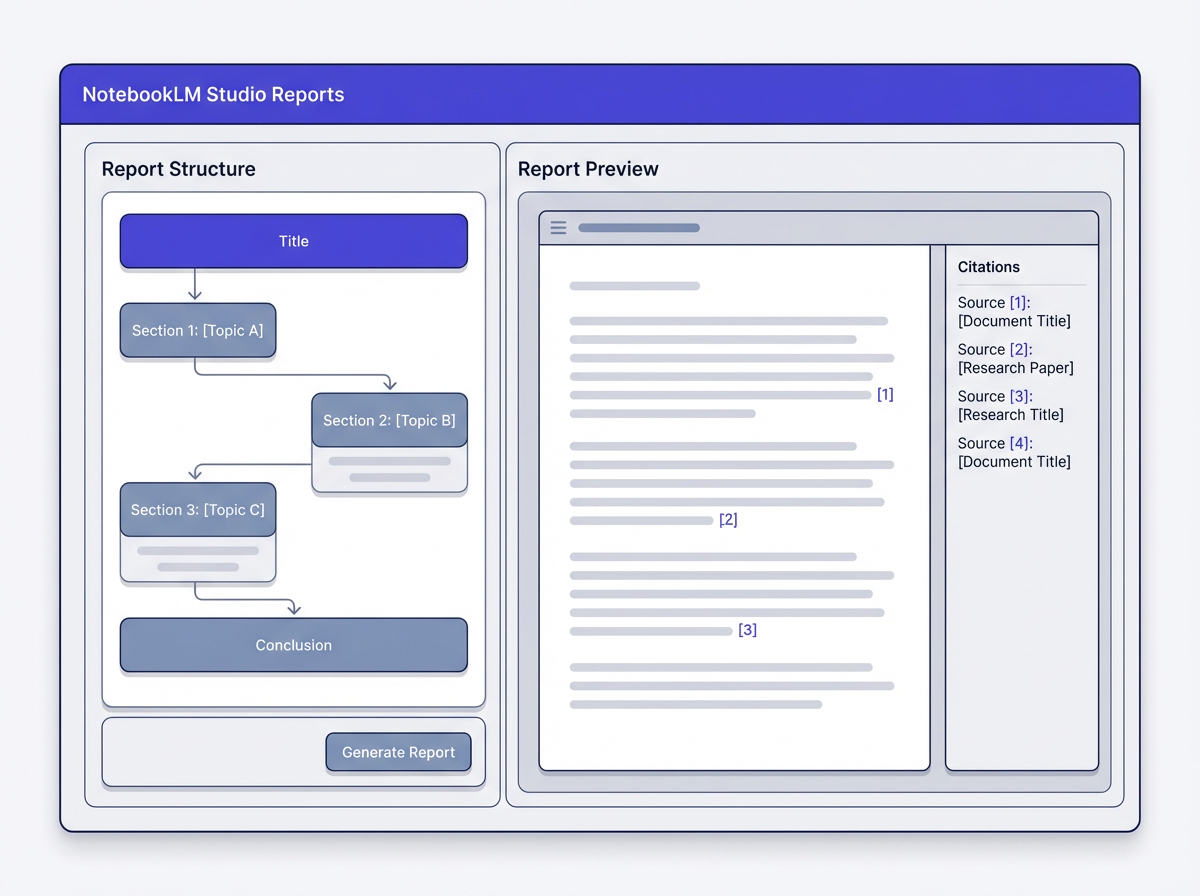
Studio is the place where you generate outputs from your notebook. Reports is the option that creates structured documents. You can start with suggested formats or write your own structure. You can then iterate by asking for edits, new sections, or a different voice.
Step-by-step: generate a report in Studio
- Step 1: Create a notebook. Name it by project, client, or topic.
- Step 2: Add sources. Upload PDFs, paste text, add Google Docs, add links, or add transcripts.
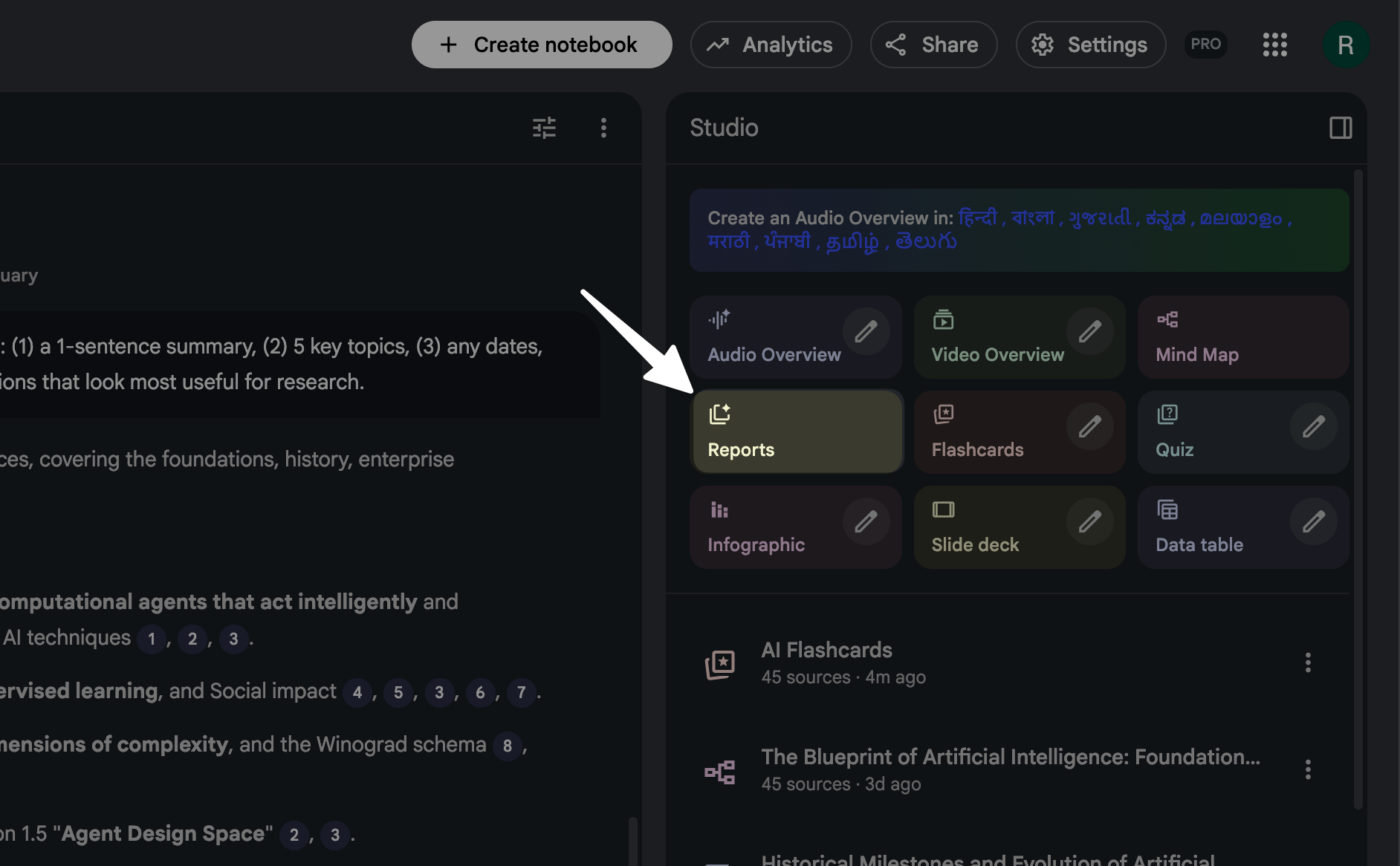
- Step 3: Open Studio. Select Reports.
- Step 4: Pick a report type. Use a suggested format or write a custom structure.
- Step 5: Add constraints. Set length, audience, reading level, and required sections.
- Step 6: Generate. Review the draft and check citations.
- Step 7: Refine. Ask for a tighter summary, more examples, or a new section.
- Step 8: Export or share. Copy to Docs, email it, or store it in your workflow.
Simple instructions that improve report quality
- Define the audience: “Write for a product manager who needs decisions, not theory.”
- Define the output: “Use headings, bullets, and a 1-page executive summary.”
- Define the scope: “Use only these sources. Do not add outside facts.”
- Define the citations: “Cite sources after each key claim.”
- Define the style: “Use short sentences. Use active voice. Avoid jargon.”
20 Types of Reports You Can Generate in NotebookLM (Using Reports Function in Studio)
This section lists 20 report types you can generate in Studio → Reports. Each type includes a clear use case, the best sources to add, and a ready-to-copy prompt. You can reuse these prompts across notebooks.
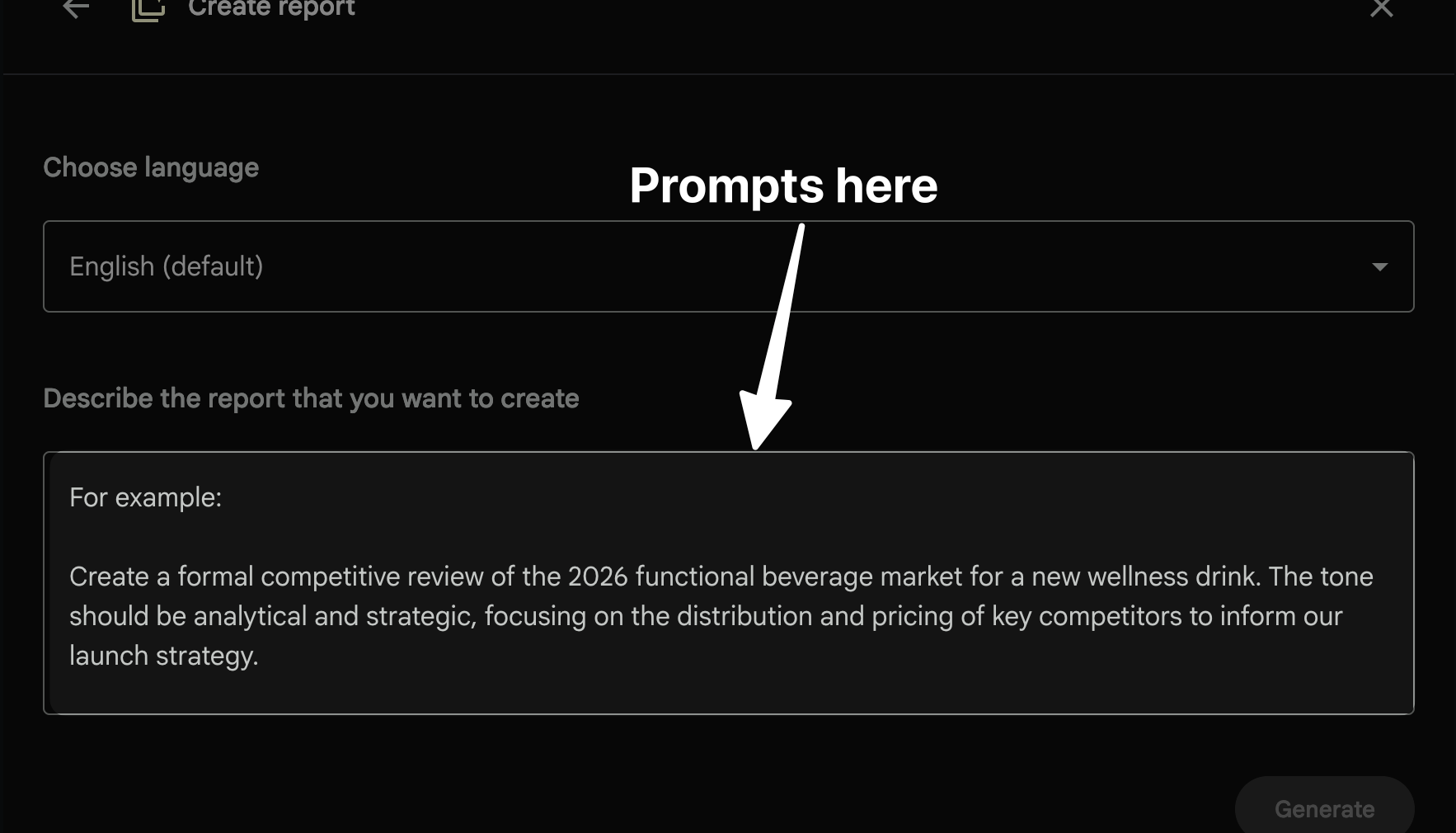
Where to put the prompts?
Open reports option and click on create your own option as below;
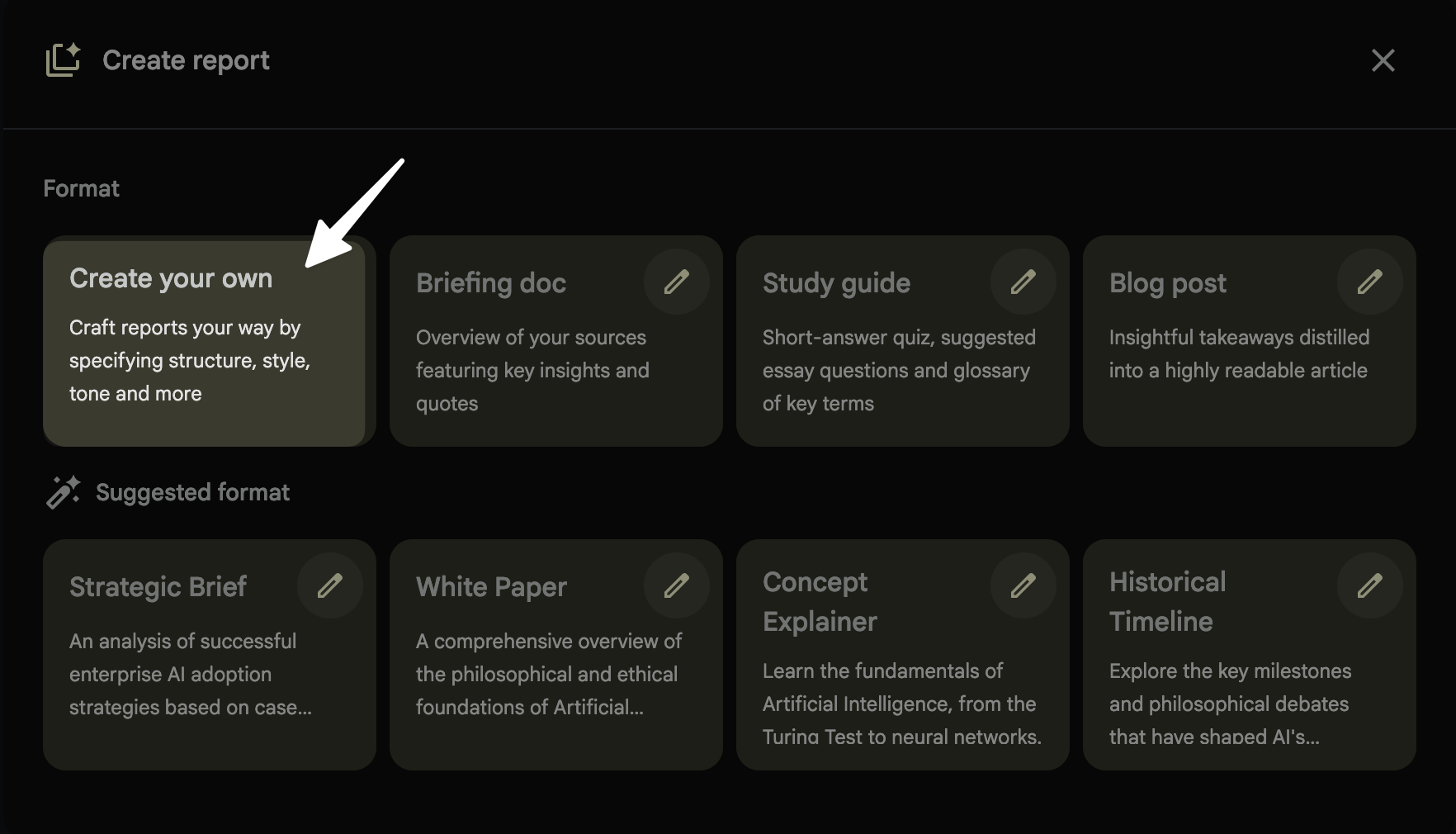
Here under describe section paste the prompts;
1) Executive summary report
- Use it for: Quick updates for leaders who need decisions and risks.
- Best sources: Project docs, meeting notes, status updates, dashboards exported as text.
- Prompt: “Create an executive summary with: goals, current status, top 5 wins, top 5 risks, decisions needed, and next 7 days plan. Use bullets. Keep it under 600 words. Add citations.”
2) Research literature review report
- Use it for: Summarizing papers and finding patterns across studies.
- Best sources: PDFs of papers, abstracts, annotated notes, conference slides.
- Prompt: “Write a literature review with: themes, key findings, methods used, gaps, and open questions. Include a table of studies with citation links. Use only the provided sources.”
3) Competitive analysis report
- Use it for: Comparing products, pricing, positioning, and feature gaps.
- Best sources: Product pages, pricing pages, reviews, internal notes, sales call notes.
- Prompt: “Create a competitive analysis of the companies in the sources. Include: target users, key features, pricing, strengths, weaknesses, and differentiation ideas. End with 5 recommendations. Cite sources.”
4) Meeting minutes report
- Use it for: Turning raw notes or transcripts into clean minutes.
- Best sources: Transcript, agenda, chat logs, action item lists.
- Prompt: “Convert the meeting transcript into minutes with: attendees, agenda, decisions, action items (owner + due date), and open questions. Use bullets and short sentences. Add citations.”
5) Action plan report
- Use it for: Turning goals into tasks, owners, and timelines.
- Best sources: Strategy doc, OKRs, roadmap notes, stakeholder feedback.
- Prompt: “Create a 30-60-90 day action plan. Include: objectives, tasks, owners, dependencies, risks, and success metrics. Provide a weekly checklist. Cite sources.”
6) Project status report
- Use it for: Weekly or biweekly updates that stay consistent.
- Best sources: Sprint notes, Jira exports, milestone docs, release notes.
- Prompt: “Write a project status report with: summary, milestones, progress by workstream, blockers, risks, budget notes, and next steps. Add a RAG status (red/amber/green) with reasons.”
7) Incident postmortem report
- Use it for: Documenting outages and preventing repeats.
- Best sources: Incident timeline, logs summary, Slack thread export, customer tickets.
- Prompt: “Create an incident postmortem with: impact, timeline, root cause, contributing factors, what worked, what failed, and prevention actions. Include owners and due dates. Use neutral language. Cite sources.”
8) Customer feedback synthesis report
- Use it for: Turning many comments into themes and priorities.
- Best sources: Survey results, support tickets, call notes, app reviews.
- Prompt: “Summarize customer feedback into themes. For each theme, include: frequency signals, representative quotes, user impact, and suggested fixes. End with a priority list using impact vs effort.”
9) User research insights report
- Use it for: Converting interviews into insights and design inputs.
- Best sources: Interview transcripts, observation notes, survey open text.
- Prompt: “Create a user research insights report with: participant summary, top needs, pain points, jobs-to-be-done, key quotes, and product implications. Add 5 testable hypotheses.”
10) Requirements report (PRD-style)
- Use it for: Drafting a clear requirements doc from scattered notes.
- Best sources: Stakeholder notes, roadmap, customer requests, constraints.
- Prompt: “Draft a requirements report with: problem, goals, non-goals, user stories, functional requirements, non-functional requirements, success metrics, and open questions. Keep language direct. Cite sources.”
11) Policy summary report
- Use it for: Turning long policy docs into readable guidance.
- Best sources: HR policies, security policies, legal memos, compliance docs.
- Prompt: “Summarize this policy for employees. Include: who it applies to, key rules, do/don’t list, examples, and escalation path. Keep it under 900 words. Cite sources.”
12) Compliance gap analysis report
- Use it for: Mapping current practice to a standard and finding gaps.
- Best sources: Standard text, audit notes, process docs, evidence lists.
- Prompt: “Create a gap analysis against the standard in the sources. Output a table with: requirement, current evidence, gap, risk level, and remediation steps. Cite evidence lines.”
13) Training recap report
- Use it for: Summarizing workshops and training sessions.
- Best sources: Slides, facilitator notes, Q&A logs, recordings transcript.
- Prompt: “Create a training recap with: objectives, key concepts, step-by-step process, common mistakes, Q&A highlights, and a short quiz with answers. Cite sources.”
14) Sales call recap report
- Use it for: Clean summaries for CRM and follow-up emails.
- Best sources: Call transcript, notes, account plan, email thread.
- Prompt: “Summarize the sales call with: customer goals, current setup, pain points, objections, agreed next steps, and follow-up email draft. Keep it concise. Cite sources.”
15) Marketing campaign performance report
- Use it for: Explaining results and what to do next.
- Best sources: Analytics exports as text, campaign brief, creative notes.
- Prompt: “Write a campaign performance report with: goal, channels, key metrics, what drove results, what failed, and next actions. Include 5 tests for the next cycle. Cite sources.”
16) Content brief report
- Use it for: Turning research into a writing plan that ranks.
- Best sources: SERP notes, competitor outlines, product docs, FAQs.
- Prompt: “Create a content brief with: target keyword, search intent, outline (H2/H3), key points per section, internal links to include, and FAQs. Keep it practical and direct.”
17) Technical documentation report
- Use it for: Drafting setup guides and runbooks from internal notes.
- Best sources: README files, architecture notes, support fixes, SOPs.
- Prompt: “Write technical documentation with: overview, prerequisites, setup steps, configuration, common errors, and troubleshooting. Use code blocks only if sources include commands. Cite sources.”
18) Risk assessment report
- Use it for: Listing risks with clear mitigation plans.
- Best sources: Project plans, vendor docs, security notes, incident history.
- Prompt: “Create a risk assessment with: risk description, likelihood, impact, detection signals, mitigation, and owner. Add a top 10 risk list and quick wins.”
19) Budget and cost summary report
- Use it for: Explaining spend, variance, and forecast in plain language.
- Best sources: Budget sheets pasted as text, invoices summary, finance notes.
- Prompt: “Write a budget summary with: planned vs actual, variance reasons, forecast, and cost-saving options. Use a simple table and bullets. Cite sources.”
20) Slide-ready report (outline + speaker notes)
- Use it for: Creating a report that converts into slides fast.
- Best sources: Any set of sources, plus your meeting goal and audience.
- Prompt: “Create a slide-ready report with: 10-slide outline, 3 bullets per slide, speaker notes per slide, and suggested visuals. End with 3 possible titles. Cite sources.”
How to pick the right report type for your goal
Report quality improves when the report type matches your goal. You can decide in under one minute by using three checks: audience, decision, and time. You can also keep a default structure for repeat work.
Use this quick selection checklist
- If a leader needs a decision: Use an executive summary report or project status report.
- If you need patterns across many inputs: Use a synthesis report like customer feedback or literature review.
- If you need a plan: Use an action plan report or risk assessment report.
- If you need a record: Use meeting minutes or incident postmortem.
- If you need to teach: Use training recap or technical documentation.
- If you need slides: Use the slide-ready report.
Use a standard structure to speed up repeat reports
- Header: Title, date, owner, audience
- Summary: 5 bullets max
- Details: Findings grouped by theme
- Decisions: What you need from the reader
- Next steps: Tasks, owners, due dates
- Sources: Citation list or linked references
What can you do with a NotebookLM?
NotebookLM helps you work with your own sources. You can ask questions, get summaries, and generate structured outputs in Studio. You can also keep multiple notebooks to separate topics and reduce noise.
Practical things you can do in NotebookLM
- Summarize long documents like PDFs, policies, and research papers.
- Extract key points with citations so you can verify claims fast.
- Compare sources to find agreement, conflict, and missing details.
- Create reports in Studio such as postmortems, PRDs, and meeting minutes.
- Draft slide outlines with speaker notes for presentations.
- Build a reusable knowledge base per project, client, or class.
How many notebooks can I create in NotebookLM?
NotebookLM lets you create many notebooks, and the exact limit can depend on your account and current product rules. The practical best practice is to create one notebook per project or course, then keep sources tight. This keeps answers focused and reduces conflicting context.
A simple notebook setup that stays clean
- One notebook per goal: “Q1 Product Launch,” “HR Policies,” “Thesis Sources.”
- One source per file when possible: Split giant PDFs into sections if they cover different topics.
- Name sources clearly: “2026-01 Support Tickets,” “Vendor Contract v3,” “Interview 07.”
- Archive old notebooks: Keep active work fast and searchable.
Best practices for better NotebookLM reports (fast wins)
NotebookLM reports improve when your sources are clear and your instructions are specific. You do not need long prompts. You need tight constraints and a clean structure.
Source hygiene: make the model’s job easy
- Add the right sources only: Remove unrelated docs from the notebook.
- Use clean transcripts: If possible, remove repeated timestamps and filler words.
- Label versions: Add “v1, v2, final” in filenames to prevent mix-ups.
- Include a glossary: Add a short note that defines acronyms used in the sources.
Structure control: keep output consistent
- Ask for headings: “Use H2 and H3 style headings and bullet lists.”
- Ask for tables: “Add a table for risks and owners.”
- Ask for limits: “Max 900 words. Max 7 bullets per section.”
- Ask for decisions: “End with decisions needed and a clear ask.”
Quality checks before you share
- Check citations: Verify that key claims point to the right source.
- Check scope: Confirm it did not include outside facts if you restricted it.
- Check action items: Make sure every action has an owner and due date.
- Check readability: Replace long paragraphs with bullets if needed.
Frequently Asked Questions (FAQs)
What can you do with a NotebookLM?
You can add your sources, ask questions, get summaries with citations, and generate structured reports in Studio such as minutes, PRDs, and postmortems.
How many notebooks can I create in NotebookLM?
You can create many notebooks, and the exact limit can vary by account rules. A good setup is one notebook per project so your reports stay focused.
What is NotebookLM on my Chromebook?
It is NotebookLM accessed in the Chrome browser on your Chromebook. You can add Drive files, chat with your sources, and generate reports in Studio.
How to generate slides with NotebookLM?
Use Studio → Reports to generate a slide-ready outline with speaker notes. Then paste the outline into Google Slides or PowerPoint and apply your theme.
Do NotebookLM reports include citations?
Yes, NotebookLM can cite the sources it used. You should still review citations before you share the report.
What sources work best for NotebookLM reports?
Clear sources work best, such as PDFs, meeting transcripts, research papers, policy docs, and well-structured notes. Mixed or unrelated sources reduce report clarity.
Final Thoughts
20 Types of Reports You Can Generate in NotebookLM (Using Reports Function in Studio) give you a repeatable way to turn sources into decisions, plans, and shareable docs. Start with one notebook, add only the sources that matter, and generate one report type that matches your goal.
Then refine with short instructions and citation checks. If you want faster work this week, pick two report templates from this list, save the prompts, and run them after your next meeting or research session.
Frequently Asked Questions
Written by
Raman Singh
Raman Singh is a highly skilled marketing professional who serves as the head of marketing at Copyrocket AI. With years of experience in the field, Raman has developed a deep understanding of all asp
View all postsYour AI Marketing Agents
Are Ready to Work
Stop spending hours on copywriting. Let AI craft high-converting ads, emails, blog posts & social media content in seconds.
Start Creating for FreeNo credit card required. 50+ AI tools included.
Related Articles
 General
NotebookLM For Coders: Turn Docs Into Faster Code
Code work often fails for a simple reason. You do not have the right context at the right time. You read docs in one tab, skim tickets in another tab, and then...
 General
How to Optimize for AI Search in 2026: The Complete Guide
AI search has shifted from experimental feature to primary search method for millions of users. ChatGPT Search, Google AI Overviews, Perplexity, Claude, and Gem...
 General
Claude Opus 4.6 Review: Here's What New!
Claude Opus 4.6 from Anthropic draws attention because teams want an AI model that writes better code, follows instructions, and stays consistent across long se...