
Google Gemma 4: How to use Locally, iPhone and Android devices?

Raman Singh
Raman Singh is a highly skilled marketing professional who serves as the head of marketing at Copyrocket AI

Google Gemma 4 is a family of open models that you can run on a laptop, a workstation, a server, or a managed cloud endpoint. You can use it for chat, summarization, coding help, extraction, and long-document analysis. Some variants also support Gemma 4 multimodal use cases, such as Gemma 4 vision input, and smaller Gemma 4 edge models can include Gemma 4 audio support for on-device apps.
This guide explains how to use Gemma 4 in clear steps. You will learn what Gemma 4 is, how it differs from earlier Gemma releases, and how to pick the right size. You will also learn how to run Gemma 4 locally, how to use Gemma 4 on Google Cloud with Gemma 4 Vertex AI, and how to deploy it for apps with Gemma 4 serving options like Gemma 4 Cloud Run and Gemma 4 Docker.
Next, you will get copy-paste examples, a hardware checklist, and troubleshooting notes. You will also learn where to find the Gemma 4 model card, the Gemma 4 Apache 2.0 license, and official download locations such as Gemma 4 Hugging Face and Gemma 4 GitHub.
Key Takeaways
Google Gemma 4 is an open model family for text, and selected variants for vision input and audio support on edge.
You can choose from Gemma 4 E2B, Gemma 4 E4B, Gemma 4 26B MoE, and Gemma 4 31B based on device limits and task needs.
You can run Gemma 4 locally by downloading weights, picking a runtime, and using a chat template with the correct Gemma 4 prompt format.
You can use Gemma 4 on Google Cloud with Vertex AI for managed endpoints and simpler scaling.
Gemma 4 quantization changes speed and memory use. It also changes output quality.
The Gemma 4 model card and Gemma 4 Apache 2.0 license explain safety notes, limits, and commercial use terms.
What is Google Gemma 4 and what can it do?
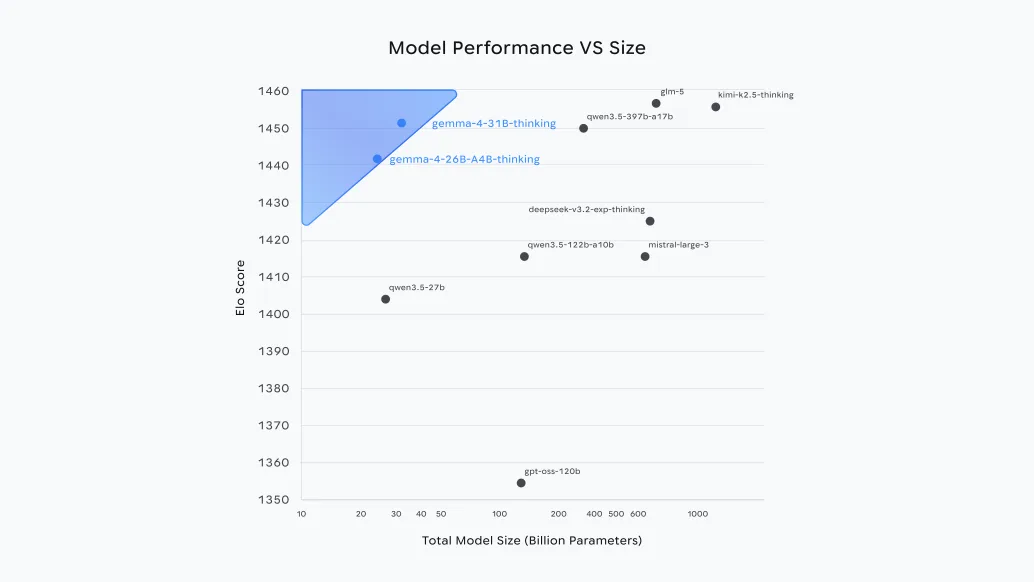
Google Gemma 4 is a set of open-weight models that focus on practical inference and deployment. It includes Gemma 4 pretrained checkpoints and Gemma 4 instruction-tuned checkpoints. The pretrained models work well for continued training and domain adaptation. The instruction-tuned models work well for chat and task prompts.
Next, it helps to separate three capability areas: text, vision, and audio.
Text, vision, and audio in Gemma 4
Text: All Gemma 4 variants support text generation and text understanding tasks such as summarization, extraction, classification, and code help.
Vision: Selected variants support Gemma 4 multimodal prompts with Gemma 4 vision input. You pass an image plus text, and the model answers questions about the image.
Audio: Some Gemma 4 edge models can include Gemma 4 audio support for on-device speech or audio event tasks, depending on the released checkpoint and runtime support.
Next, you should confirm the exact modalities for the specific checkpoint you download. The Gemma 4 model card is the source you should cite for modality support, safety notes, and evaluation details.
How Gemma 4 differs from earlier Gemma releases
Gemma 4 expands the range of deployment targets, including edge and mobile paths.
Gemma 4 improves long-context support on selected models, including Gemma 4 context window 256K on supported variants.
Gemma 4 adds clearer packaging across sizes, including Gemma 4 E2B, Gemma 4 E4B, Gemma 4 26B MoE, and Gemma 4 31B, with different memory and speed tradeoffs.
Next, you should pick a model size based on your hardware and your context needs.
Which Gemma 4 model should I use?
You should pick a model by answering three questions.
What device will run inference, and what memory does it have?
Do you need long context, such as Gemma 4 context window 256K?
Do you need Gemma 4 multimodal features like Gemma 4 vision input or Gemma 4 audio support?
Next, use the decision matrix below to map your use case to a model.
Decision matrix for Gemma 4 sizes and use cases
Gemma 4 E2B
Best for: local chat, small RAG, quick tools, Gemma 4 mobile prototypes
Typical hardware: CPU inference possible, small GPU optional
Notes: good starting point for Gemma 4 CPU inference and edge tests
Gemma 4 E4B
Best for: higher quality chat, better reasoning, small vision tasks if supported by the checkpoint
Typical hardware: GPU helps, CPU can work with quantization
Notes: good balance for laptops and single-GPU desktops
Gemma 4 26B MoE
Best for: higher quality with better inference efficiency than dense models at similar total size
Typical hardware: GPU recommended, quantization often required for local use
Notes: MoE can activate fewer parameters per token than total Gemma 4 parameters, which can reduce compute per forward pass
Gemma 4 31B
Best for: top quality in the family, long context tasks, heavier RAG, better tool use
Typical hardware: strong GPU or managed cloud endpoint
Notes: best fit for Gemma 4 on Google Cloud if you want simple scaling
Next, you should match context needs to the exact checkpoint.
What is Gemma 4’s maximum context window and which models support 256K?
Gemma 4 includes variants that support long context, including Gemma 4 context window 256K on supported checkpoints. You must verify support per checkpoint in the Gemma 4 model card because context length can differ by size and by tuning type.
Use 256K only when you need it, because long context increases memory use and can reduce speed.
Use shorter context for chat and short documents, because it improves throughput and cost.
Next, you should plan hardware for the model you pick.
Hardware requirements and performance planning
You should plan for memory first, then compute. Memory limits decide what you can load. Compute limits decide how fast you can generate tokens.
Next, use these practical targets as a starting point, then adjust after you test your runtime.
Gemma 4 GPU requirements and VRAM targets
E2B
VRAM target: 4 GB to 8 GB for comfortable use
With Gemma 4 quantization: can fit smaller GPUs more easily
E4B
VRAM target: 8 GB to 12 GB
With quantization: can fit 6 GB to 8 GB in some runtimes
26B MoE
VRAM target: 16 GB to 24 GB depending on quantization and KV cache needs
Note: MoE can reduce active compute, but memory still matters for weights and cache
31B
VRAM target: 24 GB to 48 GB depending on quantization, context length, and batch size
Next, plan for system RAM too. If you offload layers to CPU or use CPU-only inference, RAM becomes the main limit.
Gemma 4 CPU inference and RAM targets
CPU inference works best with smaller models and strong quantization.
RAM target for CPU-only:
E2B: 8 GB to 16 GB
E4B: 16 GB to 32 GB
26B MoE and 31B: 64 GB or more is often needed for smooth use
Next, you should understand how quantization changes memory and quality.
Gemma 4 quantization basics
Lower-bit quantization reduces memory use and can increase speed.
Lower-bit quantization can reduce accuracy on reasoning and long context tasks.
You should test at least two settings:
A higher quality setting for final outputs
A faster setting for interactive chat and drafts
Next, you can move from planning to local setup.
How to use Google Gemma 4?
You can use all Google Gemma 4 Set of Model families using our AI Chat bot here for free.
Click on model selector below "Copyrocket ai" and search for Gemma 4.
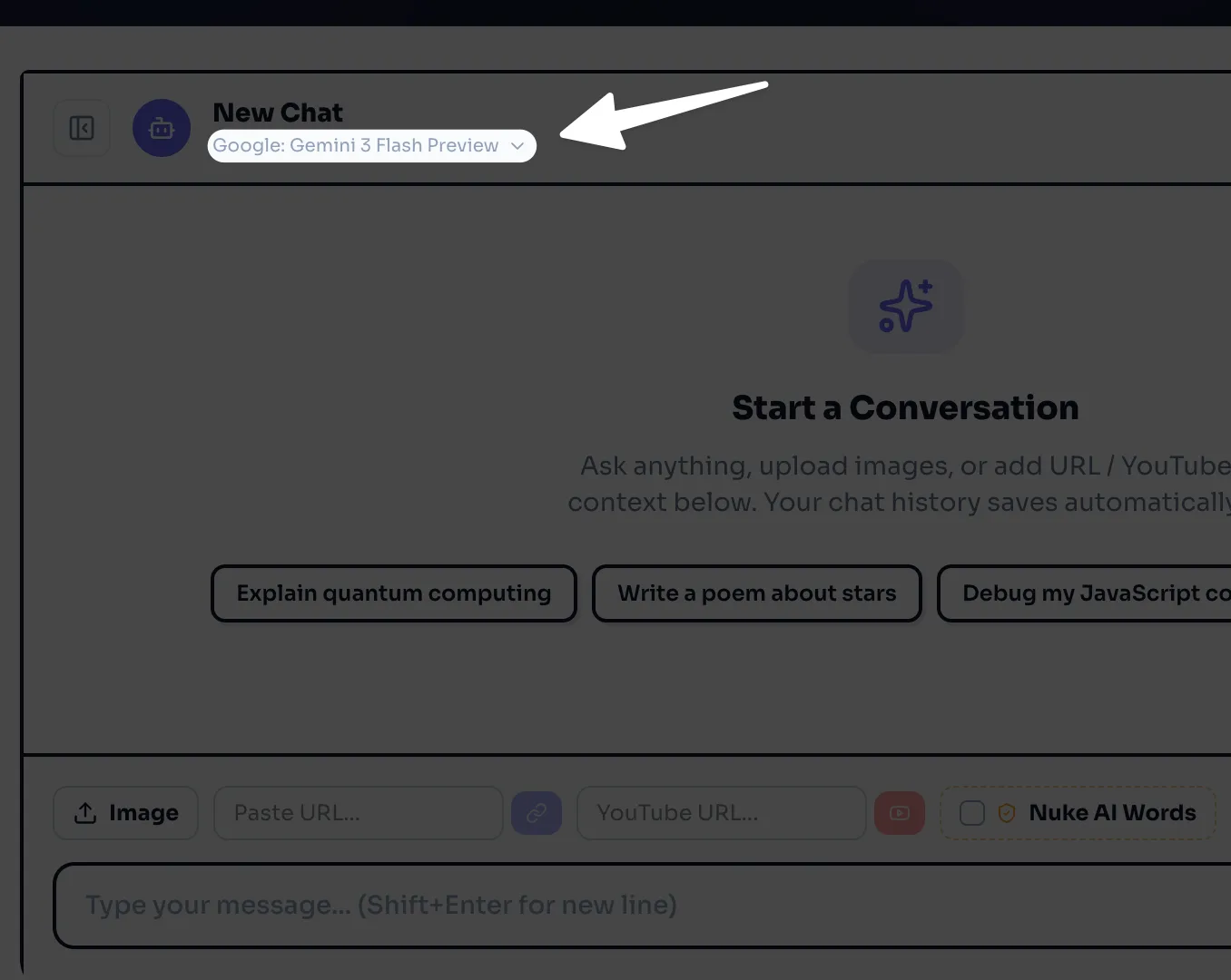
You have two options i.e. 24b one and 31b, Choose either.
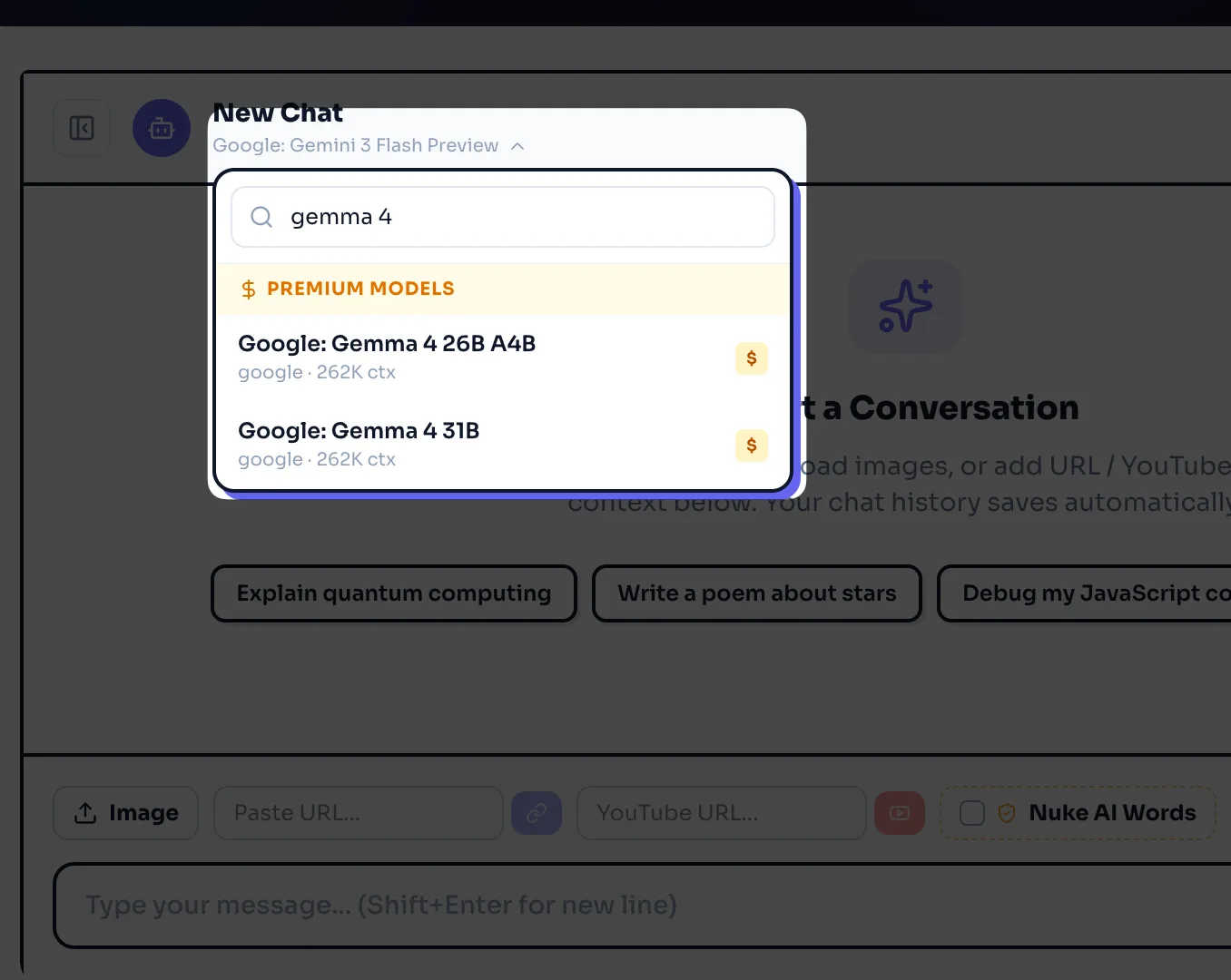
Now ask anything like "Explain quantum computing" and press enter to test the model.
How do I run Gemma 4 locally step by step?
This section is a practical Gemma 4 tutorial for local inference. The exact commands depend on the runtime you choose, but the flow stays the same.
Download weights from an official host
Load the model in a runtime
Use the correct Gemma 4 prompt format and Gemma 4 chat template
Run a chat or batch inference test
Next, start with the official sources.
Step: Get the model from Hugging Face or GitHub
Check Gemma 4 Hugging Face for released checkpoints and files.
Read the Gemma 4 model card before you deploy.
Confirm the Gemma 4 Apache 2.0 license terms for redistribution and notices.
Next, pick a runtime that matches your device.
Step: Choose a runtime for local inference
Common local paths include:
Gemma 4 Ollama for a simple local chat workflow
A Transformers-based Python script for direct control
A GPU runtime such as vLLM or llama.cpp-style backends if a compatible format exists for your checkpoint
Next, test a basic chat run. The key is to use the right template.
Step: Use the Gemma 4 system prompt and chat template
Most instruction-tuned models expect a structured chat format.
Use a Gemma 4 system prompt to set rules and tone.
Use a Gemma 4 chat template to separate system, user, and assistant turns.
Keep the first test short so you can confirm the model loads and responds.
Next, use a copy-paste Python example that you can adapt.
Local inference example with Transformers (copy-paste)
Install dependencies in a clean environment
Load the model and tokenizer
Apply the chat template
Generate output
# Gemma 4 local inference example (Transformers)
# Replace MODEL_ID with the exact Gemma 4 repo id you downloaded.

import torch
from transformers import AutoTokenizer, AutoModelForCausalLM

MODEL_ID = "google/gemma-4-<variant>"  # example placeholder

tokenizer = AutoTokenizer.from_pretrained(MODEL_ID, use_fast=True)
model = AutoModelForCausalLM.from_pretrained(
    MODEL_ID,
    torch_dtype=torch.bfloat16 if torch.cuda.is_available() else torch.float32,
    device_map="auto",
)

messages = [
    {"role": "system", "content": "You are a helpful assistant. Answer in short steps."},
    {"role": "user", "content": "Explain how to use Gemma 4 for summarizing a PDF."},
]

prompt = tokenizer.apply_chat_template(
    messages,
    tokenize=False,
    add_generation_prompt=True,
)

inputs = tokenizer(prompt, return_tensors="pt").to(model.device)

with torch.no_grad():
    output = model.generate(
        **inputs,
        max_new_tokens=250,
        do_sample=True,
        temperature=0.7,
    )

print(tokenizer.decode(output[0], skip_special_tokens=True))
Next, if you want the simplest local chat UX, you can use Ollama if a compatible package exists for your target variant.
Local chat with Gemma 4 Ollama
Install Ollama on your OS
Pull or import a Gemma 4 model package
Run a chat session from the CLI
Your exact command depends on the published Ollama model name. Search for Google gemma 4 ollama and confirm the source and checksum before you trust a package.
Next, you can move to cloud usage if you need managed scaling.
How do I use Gemma 4 on Google Cloud step by step?
You use Gemma 4 on Google Cloud when you want managed infrastructure, stable endpoints, and easier scaling. The most common path is Gemma 4 Vertex AI, which can host models behind an HTTPS endpoint.
Next, follow a simple flow that matches most managed serving setups.
Step: Pick a Gemma 4 model and region
Pick the model size that matches your latency and cost goals.
Pick a region close to your users.
Confirm quota and GPU availability.
Next, create or select a Vertex AI endpoint.
Step: Deploy Gemma 4 to a managed endpoint
The exact UI steps can change, but the flow stays consistent.
Open Vertex AI in Google Cloud Console
Find the model catalog or model deployment area
Select the Gemma 4 variant you want
Deploy to an endpoint with a machine type that matches the model size
Next, call the endpoint from your app.
Step: Call Gemma 4 with an API request
Use your endpoint URL and auth token
Send a prompt that matches the Gemma 4 prompt format
Set generation parameters like max tokens and temperature
If you use tool calling or structured output, you should keep prompts strict and short. You should also log prompts and outputs for debugging and safety review.
Next, you can also run Gemma 4 in containers on Google Cloud for more control.
Gemma 4 Cloud Run and Docker option
Build a Gemma 4 Docker image that loads the model on startup
Expose a simple
/generaterouteDeploy to Gemma 4 Cloud Run if your model and runtime fit the platform limits
Use autoscaling settings that match your traffic pattern
Cloud Run works best for smaller models or for setups that load fast. For large weights, you often get better results with managed GPU services or a VM-based serving stack.
Next, you can add multimodal prompts if your checkpoint supports them.
How to use Google Gemma 4 on iPhone, iPad and Android?
You can use Gemma 4 set of models on Google AI Edge Gallery app which you can download on iOS and Android.
After you've downloaded, open the app and click on AI chat option.
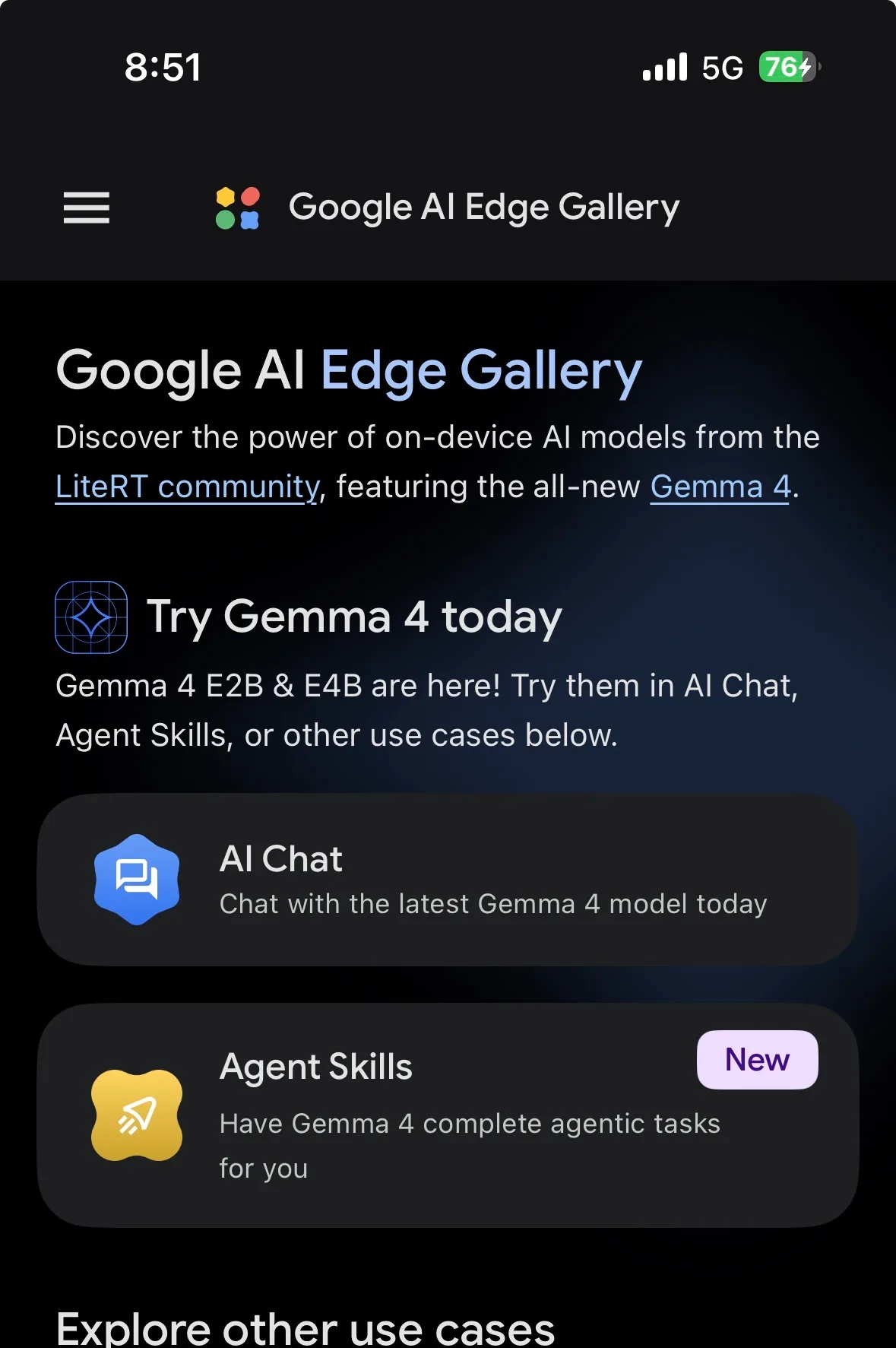
Now it will list down all models that are compatible with your device including Gemma 4.
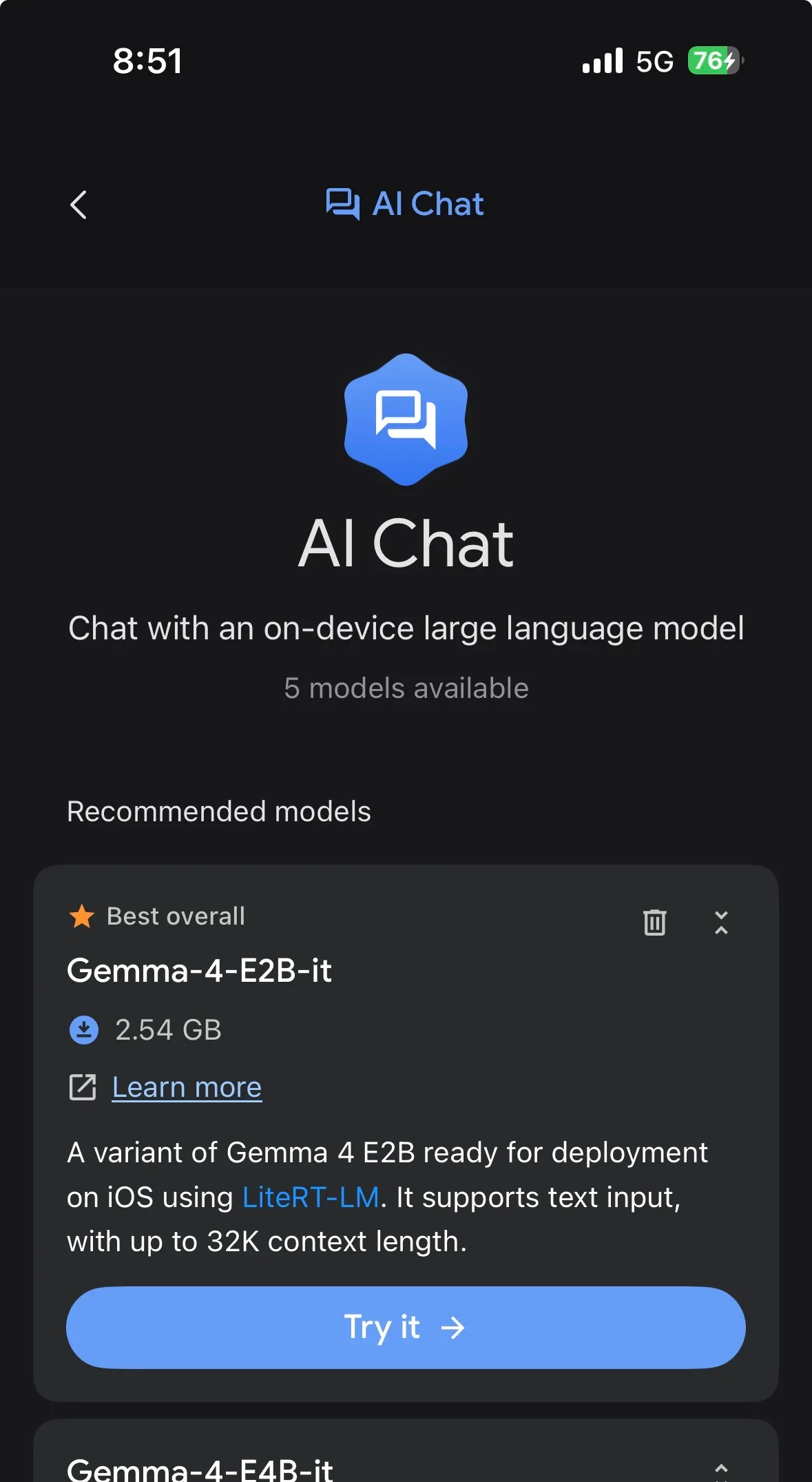
Download them and click on it to use on your Android as well as iOS Compatible phones.
How to use Gemma 4 multimodal prompts (vision and audio)
Multimodal use depends on the exact checkpoint. You must confirm support in the Gemma 4 model card. You must also confirm that your runtime supports the modality.
Next, start with vision because it is the most common multimodal path.
Gemma 4 vision input basics
A vision prompt usually includes:
An image input, such as a local file or URL that you load into memory
A text question that tells the model what to do with the image
A short output format rule, such as “answer in bullets”
Many runtimes use a processor object that combines image and text into tensors. Your code will differ by library version, but the pattern stays consistent.
Next, use a clear prompt style.
Good: “List the objects you see. Then read any visible text.”
Better: “Return JSON with keys: objects, text, safety_notes.”
Next, consider audio support on edge.
Gemma 4 audio support on edge models
Some Gemma 4 edge models can support audio tasks, depending on the released checkpoint and the runtime. Edge audio flows often include:
A feature extractor that converts audio to model inputs
A short context prompt that sets the task, such as “transcribe” or “classify”
A small output target, such as a label set
If you want an on-device demo, check Google AI Edge Gallery for reference apps and supported formats. You can also check Gemma 4 mobile examples and conversion notes.
Next, you can deploy multimodal models, but you must test memory use because images and long context increase KV cache pressure.
Fine-tuning and adaptation: LoRA and practical workflows
You can adapt Gemma 4 to your domain with full fine-tuning or parameter-efficient methods. Most teams start with Gemma 4 LoRA because it reduces GPU memory use and training time.
Next, pick the right base checkpoint.
Gemma 4 pretrained vs Gemma 4 instruction-tuned for fine-tuning
Use Gemma 4 pretrained if you want to teach new domain language and style from scratch.
Use Gemma 4 instruction-tuned if you want better instruction following and chat behavior with less data.
Next, keep your dataset format strict.
Use consistent roles if you train chat data.
Keep system prompts short and stable.
Remove private data and secrets.
Gemma 4 fine-tuning checklist
Start with LoRA on E2B or E4B to validate data and metrics.
Track loss and task metrics on a held-out set.
Test for refusal behavior and unsafe outputs.
Save adapters and document the base model id, commit hash, and training settings.
Next, you can move from training to serving.
Serving and deployment patterns for apps
You can serve Gemma 4 in three common ways.
Local server for internal tools
Container service for a product backend
Managed endpoint on Gemma 4 Vertex AI
Next, pick a serving stack that matches your traffic.
Gemma 4 serving with a simple HTTP API
A basic pattern looks like this:
A web server receives a request with messages and settings
The server applies the Gemma 4 chat template
The server runs Gemma 4 inference
The server returns text, tokens, and timing
You should log:
Model id and quantization setting
Prompt length and output length
Latency and errors
Next, add scaling rules.
Scaling and reliability basics
Use batching only if you can accept added latency.
Use streaming tokens for better UX in chat.
Set timeouts and max tokens to control cost.
Cache system prompts and static context.
If you deploy on Kubernetes or VMs, you can also follow vendor guides such as Gemma 4 Red Hat AI for day-zero setup patterns.
Next, you should cover licensing and compliance before production use.
Licensing, commercial use, and official documentation
Gemma 4 uses the Gemma 4 Apache 2.0 license for released code and weights where stated. Apache 2.0 is a permissive license that supports commercial use, modification, and redistribution, as long as you follow the license terms.
Next, treat licensing as a checklist item, not an afterthought.
What Apache 2.0 means for your Gemma 4 app
You can use Gemma 4 in commercial products if the released package states Apache 2.0.
You must keep required notices and license text when you redistribute.
You must document changes if you distribute modified files, as required by the license terms.
You should review the Gemma 4 model card for usage notes, safety limits, and evaluation scope.
Next, use official sources for claims and specs.
Where to find the model card and official releases
Gemma 4 model card: the primary source for context length, modalities, and safety notes
Gemma 4 Hugging Face: common host for checkpoints and configs
Gemma 4 GitHub: reference code, examples, and tooling links
Next, you can apply the practical tips below to avoid common setup failures.
Practical Tips and Examples
You can get better results faster if you use a repeatable setup and a short test plan.
Next, use these copy-paste workflows and checks.
Quick start paths you can run today
Local CLI path
Use Gemma 4 Ollama if a verified package exists for your variant
Run a short prompt first, then increase max tokens
Switch to a Python runtime if you need tool calling or strict templates
Cloud managed path
Deploy Gemma 4 on Google Cloud with Gemma 4 Vertex AI
Start with a small model to validate prompts and cost
Move to a larger model only after you measure quality gains
Edge and mobile path
Start with Gemma 4 edge models such as Gemma 4 E2B
Use Google AI Edge Gallery to confirm supported formats
Test battery use, thermal limits, and offline behavior
Next, use this troubleshooting checklist when inference fails.
Common failure modes and fixes
Out of memory on GPU
Use Gemma 4 quantization
Reduce context length and max tokens
Reduce batch size and disable long chat history
Slow output on CPU
Use a smaller model like Gemma 4 E2B
Use a lower-bit quantization format
Limit context and use shorter prompts
Bad formatting or role confusion
Apply the correct Gemma 4 prompt format
Use a stable Gemma 4 system prompt
Use the official Gemma 4 chat template from the tokenizer when available
Vision prompt does not work
Confirm the checkpoint supports Gemma 4 vision input
Confirm your runtime supports multimodal processors
Resize images and keep the question short
Next, measure quality with a small evaluation set.
Create twenty prompts that match your real use case.
Track latency, cost, and error rate.
Compare E4B vs 26B MoE vs 31B with the same prompts.
Final Thoughts
Google Gemma 4 gives you a practical set of open models that can run locally, on edge devices, or on managed cloud endpoints. You can start with Gemma 4 E2B or Gemma 4 E4B to learn the workflow, then move to Gemma 4 26B MoE or Gemma 4 31B when you need higher quality or longer context. You should confirm context length, modalities, and limits in the Gemma 4 model card, and you should follow the Gemma 4 Apache 2.0 license terms when you ship a product.
Next, pick one path from this guide and run a first test today. Use a short prompt, confirm the chat template, and then expand to long context, vision, audio, and serving once the basics work.

Written by
Raman Singh
Raman Singh is a highly skilled marketing professional who serves as the head of marketing at Copyrocket AI. With years of experience in the field, Raman has developed a deep understanding of all asp
View all postsYour AI Marketing Agents
Are Ready to Work
Stop spending hours on copywriting. Let AI craft high-converting ads, emails, blog posts & social media content in seconds.
Start Creating for FreeNo credit card required. 50+ AI tools included.
Related Articles
 General
NotebookLM For Coders: Turn Docs Into Faster Code
Code work often fails for a simple reason. You do not have the right context at the right time. You read docs in one tab, skim tickets in another tab, and then...

 General
How to Optimize for AI Search in 2026: The Complete Guide
AI search has shifted from experimental feature to primary search method for millions of users. ChatGPT Search, Google AI Overviews, Perplexity, Claude, and Gem...
 General
Claude Opus 4.6 Review: Here's What New!
Claude Opus 4.6 from Anthropic draws attention because teams want an AI model that writes better code, follows instructions, and stays consistent across long se...