
How to protect Google business profile from editing (3 Methods)

Raman Singh
Raman Singh is a highly skilled marketing professional who serves as the head of marketing at Copyrocket AI

A Google Business Profile can change without your approval. A customer can suggest a new business hour. A competitor can suggest a new category. Google can also pull data from the web and apply edits.
These changes can hurt calls, directions, rankings, and trust. A wrong phone number can send leads to the wrong place. A wrong address can break your map pin.
Major changes (like name/category/address) may trigger re-verification or additional review, and policy violations can lead to suspension." Avoid claiming a specific "verification loop" caused by edits unless you can cite Google
You can reduce risk, but you cannot fully block the public from suggesting edits. The goal is clear control, fast detection, and fast recovery.
This guide explains how Google Business Profile suggested edits work, how to secure the Google account that manages the profile, and how to manage Google Business Profile manager permissions.
You will also learn how to monitor Google Business Profile changes, how to revert changes on Google Business Profile, and how to report spam edits Google Business Profile.
Next, you will get a monitoring checklist, a decision tree for common edit types, and an incident log template you can copy.
Key Takeaways
You cannot fully disable edits on Google Business Profile, but you can reduce and reverse damage fast.
Use Google Business Profile ownership verification and keep the primary owner on a secure account you control.
Lock down access with clear Google Business Profile admin vs manager rules and remove risky users fast.
Turn on Google Business Profile notifications for changes and turn on GBP email alerts for every admin account.
Check Google Business Profile change history and act on Google Maps edit suggestions the same day.
Use reporting tools to prevent suggested edits Google Maps abuse and report spam on Google Maps.
Build trust signals so Google trusts your data and auto-applies fewer wrong edits.
Next, you will learn how edits happen and how to stop unauthorized changes GBP in real workflows.
How Google edits and suggested edits work
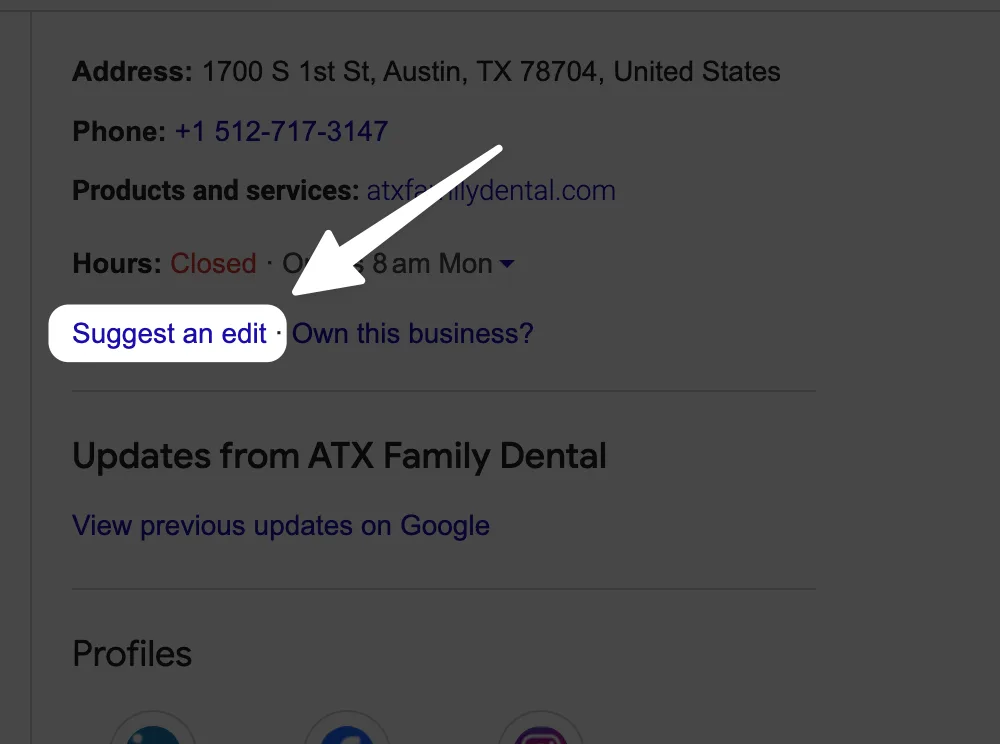
Google uses three main sources for profile edits. Each source can change your listing fields like name, hours, address, phone, website, categories, and attributes.
Google Business Profile community edits and public suggestions
Any Google Maps user can click “Suggest an edit” on many listings. This is the core reason people ask, “Can anyone edit my Google Business Profile?” The answer is yes, people can suggest edits. Google may show you the suggestion for review, or Google may apply it if Google trusts the source.
These suggestions often target:
business hours changed on Google
address changed on Google Maps
website URL changed on GBP
category changes Google Business Profile
attributes edited on Google Business Profile
brand name changes Google Business Profile
Next, you need to understand Google’s auto-apply behavior, because it changes your response time.
Auto-applied edits vs reviewed edits
Google can auto-apply changes when it sees matching data across sources. Google can also auto-apply changes when a high-trust user suggests an edit. Google can also auto-apply changes when it detects a mismatch between your profile and other sources.
Clear facts you can rely on:
Google can apply some edits without asking you first.
Google can also queue edits for your review inside the GBP dashboard.
Google can revert your edits if Google believes other sources are more accurate.
Next, you will learn how to “lock” the profile in the only way that matters in practice: account security and access control.
How to protect Google business profile from editing
If an attacker gets into your Google account, they do not need suggested edits. They can directly change the profile. This is the fastest path to a full takeover. Your first job is to secure Google account for GBP.
Use Copyrocket AI's GBP Protection Service
Copyrocket AI helps you protect Google Business Profile from edits by tracking Google Business Profile suggested edits and Google Maps edit suggestions. It supports fast review so you can stop unauthorized changes GBP, prevent suggested edits Google Maps, and act before customers see wrong details.
It supports Google Business Profile notifications for changes and helps you turn on GBP email alerts.
It reduces risk from Google Business Profile community edits and helps prevent competitors changing GBP.
Follow these steps to set it up:
Go to https://ma.copyrocket.ai/login and sign up or log in.
Open Local SEO.
From the dashboard, add your Google Business Profile and connect it.
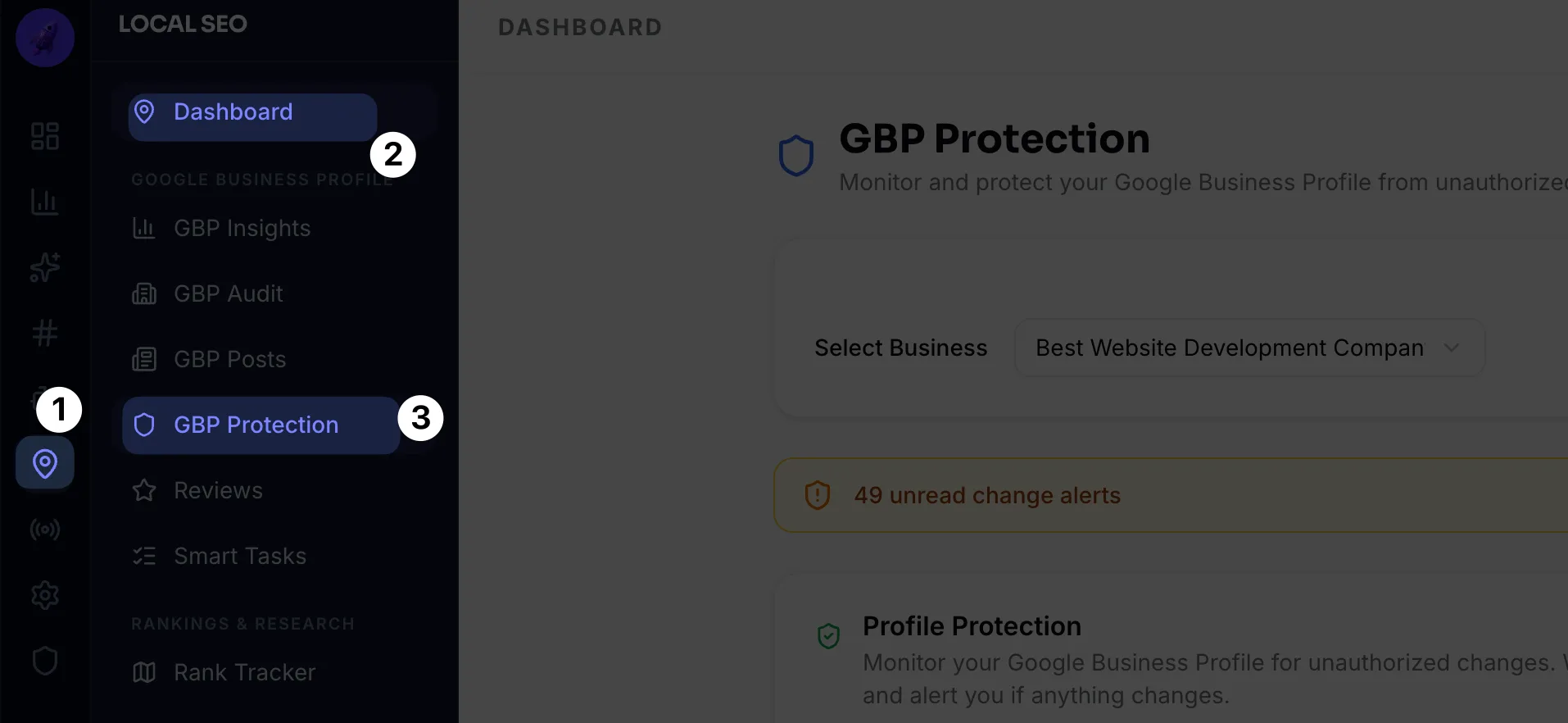
In the left sidebar, open GBP Protection.
Select your business from the dropdown.
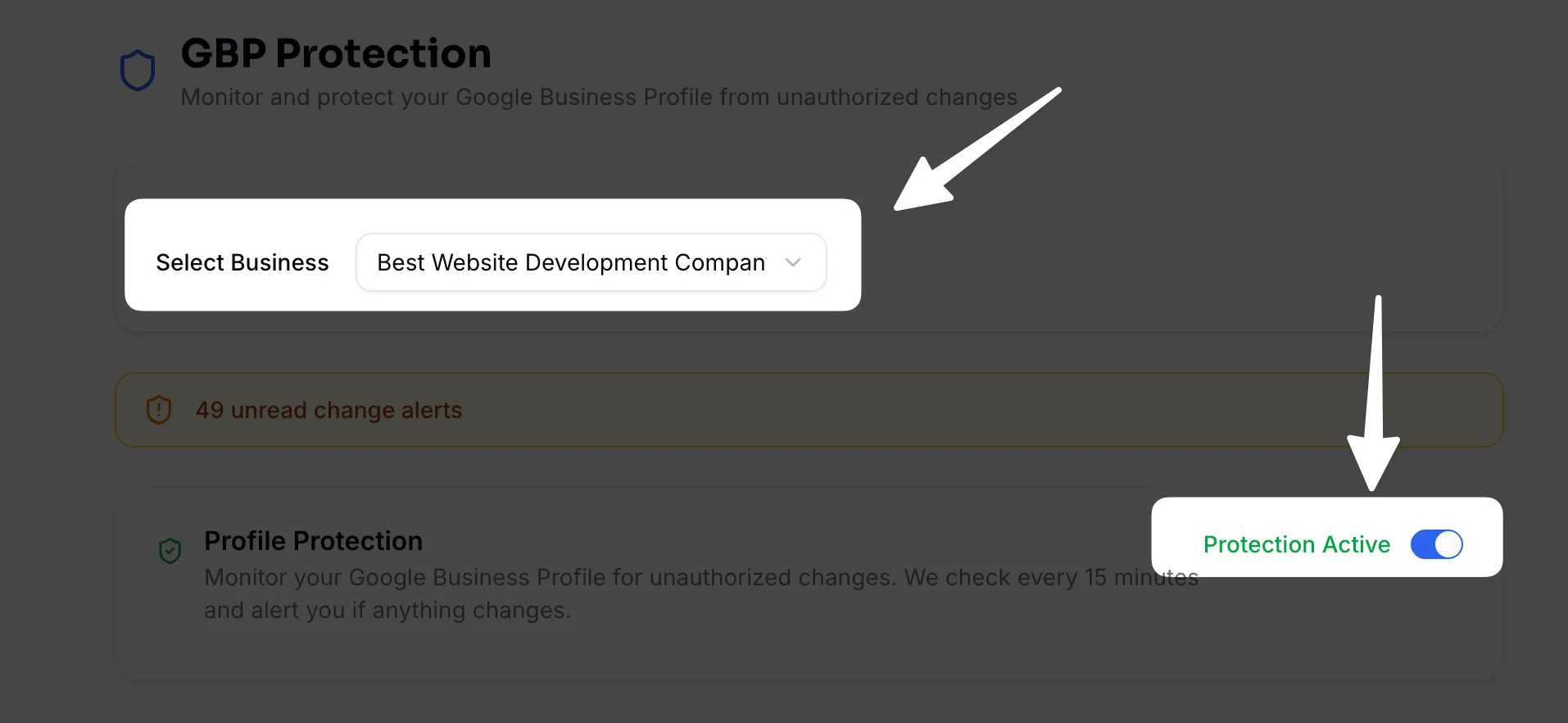
Toggle Protection ON to help lock Google Business Profile and disable edits on Google Business Profile in practice.
After setup, you get alerts when someone tries to change your address. You do not need to chase every edit.
You review the alert.
You acknowledge if the edit is correct.
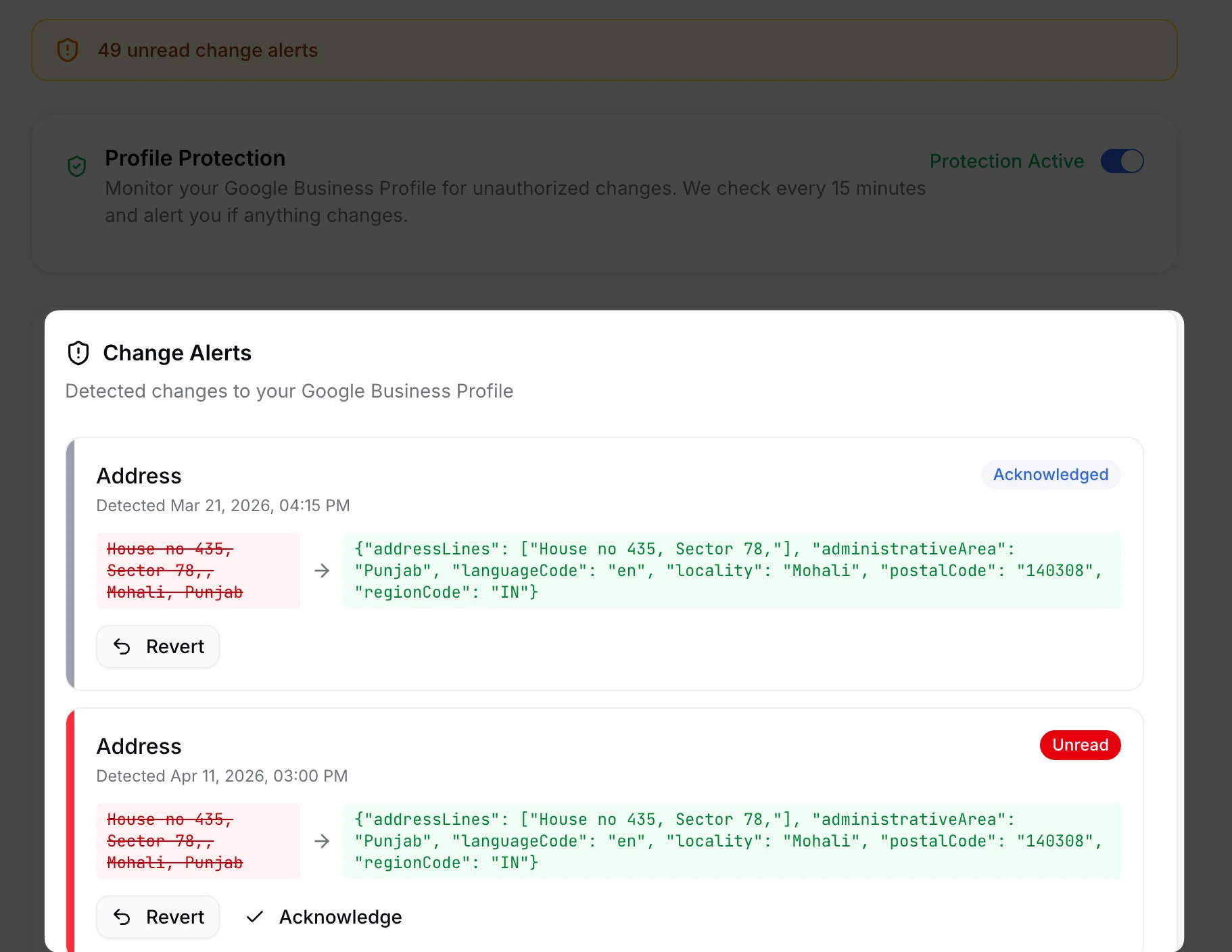
You discard if it is wrong. This supports revert changes on Google Business Profile and report incorrect edits Google Business Profile.
Two-factor authentication and recovery settings
Use two-factor authentication Google account on every account that has access to the profile. Use Google’s 2-Step Verification with an authenticator app or security key. Avoid SMS as the only method when possible.
Use this security setup:
Turn on 2-Step Verification for the primary owner account
Add a backup method like an authenticator app plus a security key
Add recovery email and recovery phone that you control
Review “Recent security activity” in the Google account
Remove unknown devices and third-party access
Next, you should reduce the number of accounts that can change the profile, because fewer accounts means fewer risks.
Use a dedicated owner account for GBP
Create a dedicated Google account for the listing. Do not use a personal inbox that many people know. Keep the primary owner on this account. Share access to staff through manager roles, not through shared passwords.
This setup helps you:
Keep ownership stable during staff turnover
Reduce phishing risk
Keep audit trails clear when you monitor Google Business Profile changes
Next, you will control who can edit what by using roles correctly.
Control roles: primary owner, owner, and manager
Many problems come from loose access. A former employee can still edit. An agency can add users. A manager can change key fields. You need clear rules for Google Business Profile admin vs manager and strict limit user access GBP.
Role definitions and permission levels
Google uses role levels that control access. The names can vary by interface updates, but the core idea stays consistent.
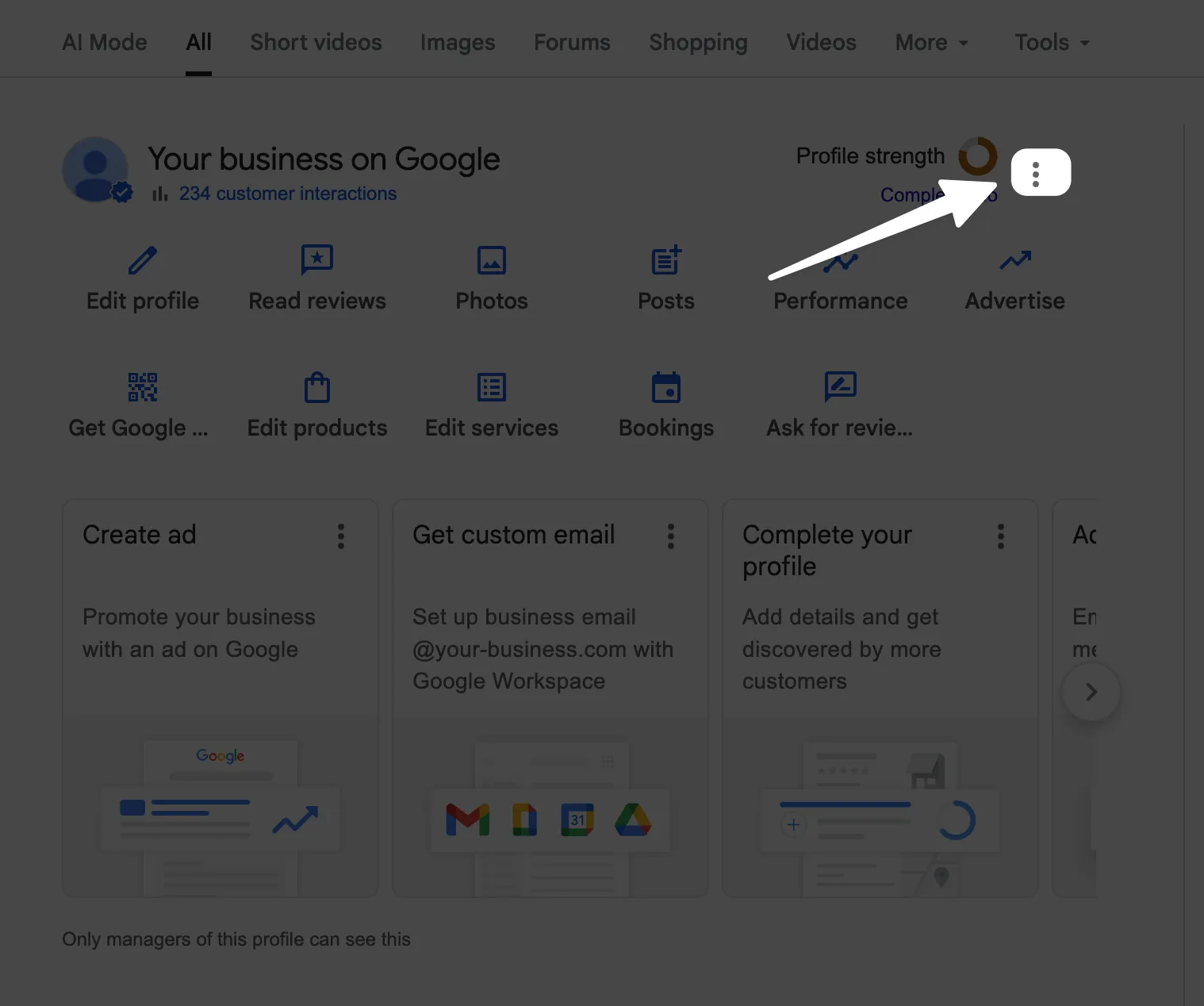
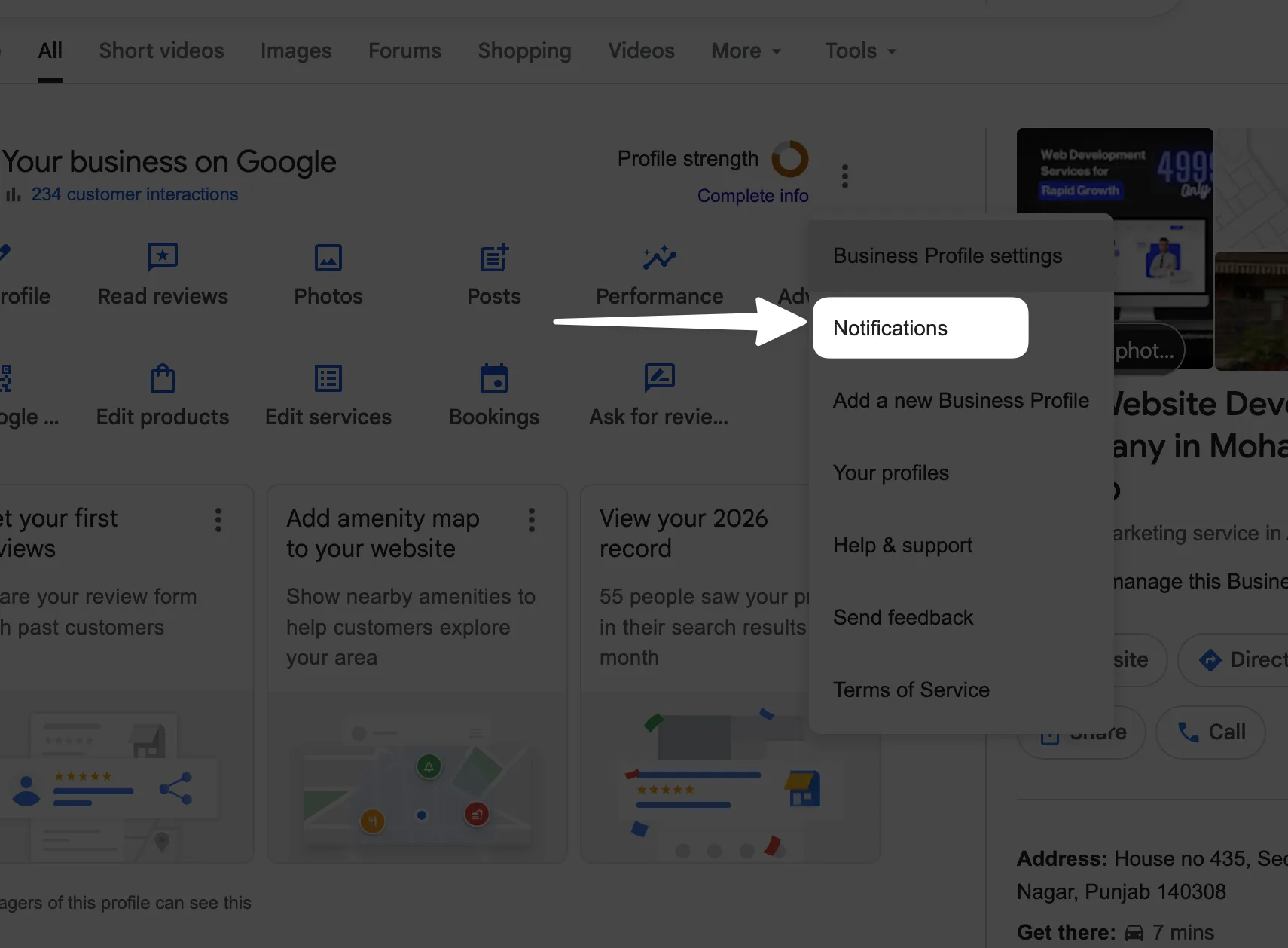
Go to your listing page and select 3 dots from the manage listing.
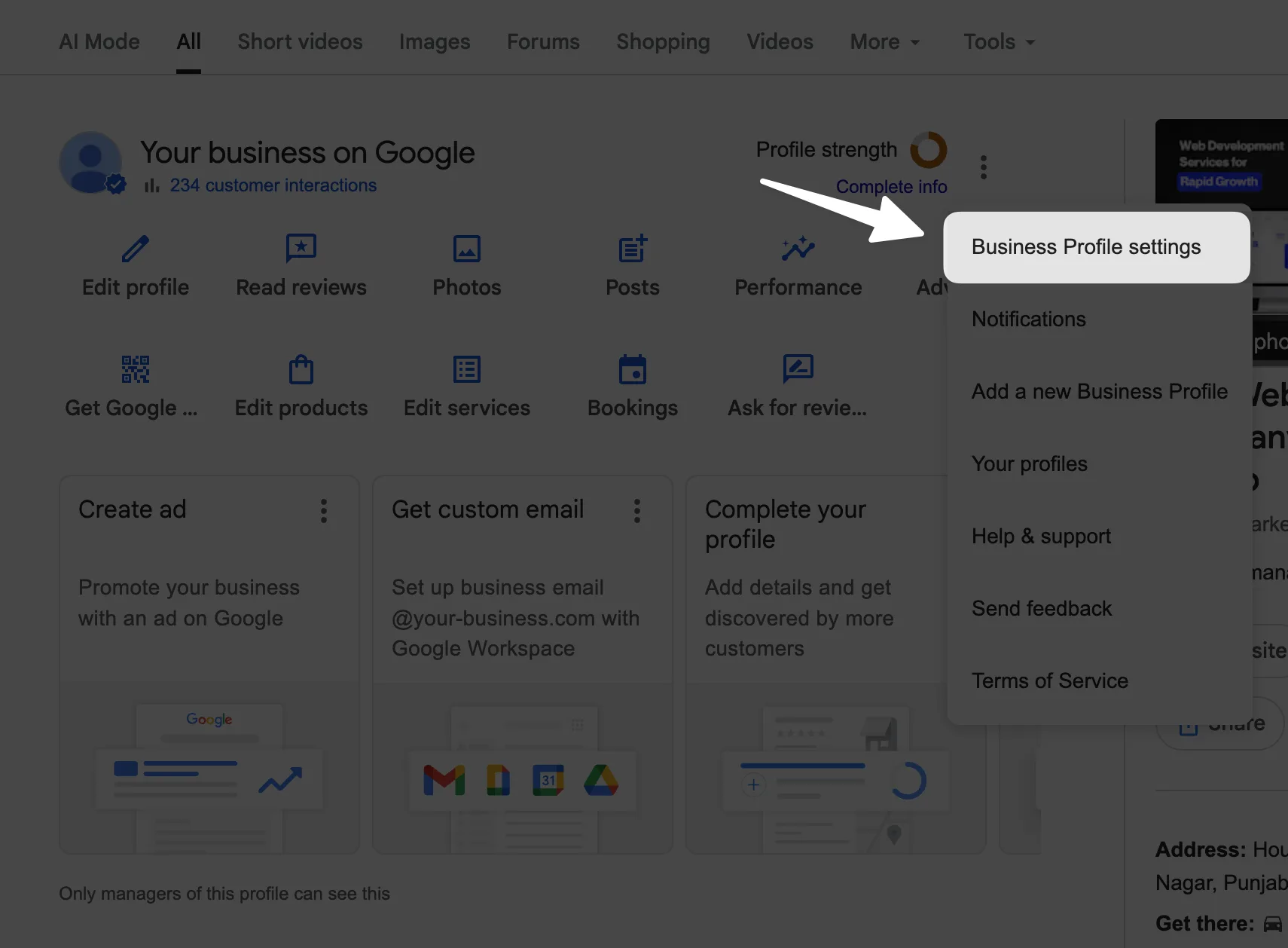
Select "Business profile settings" from dropdown.
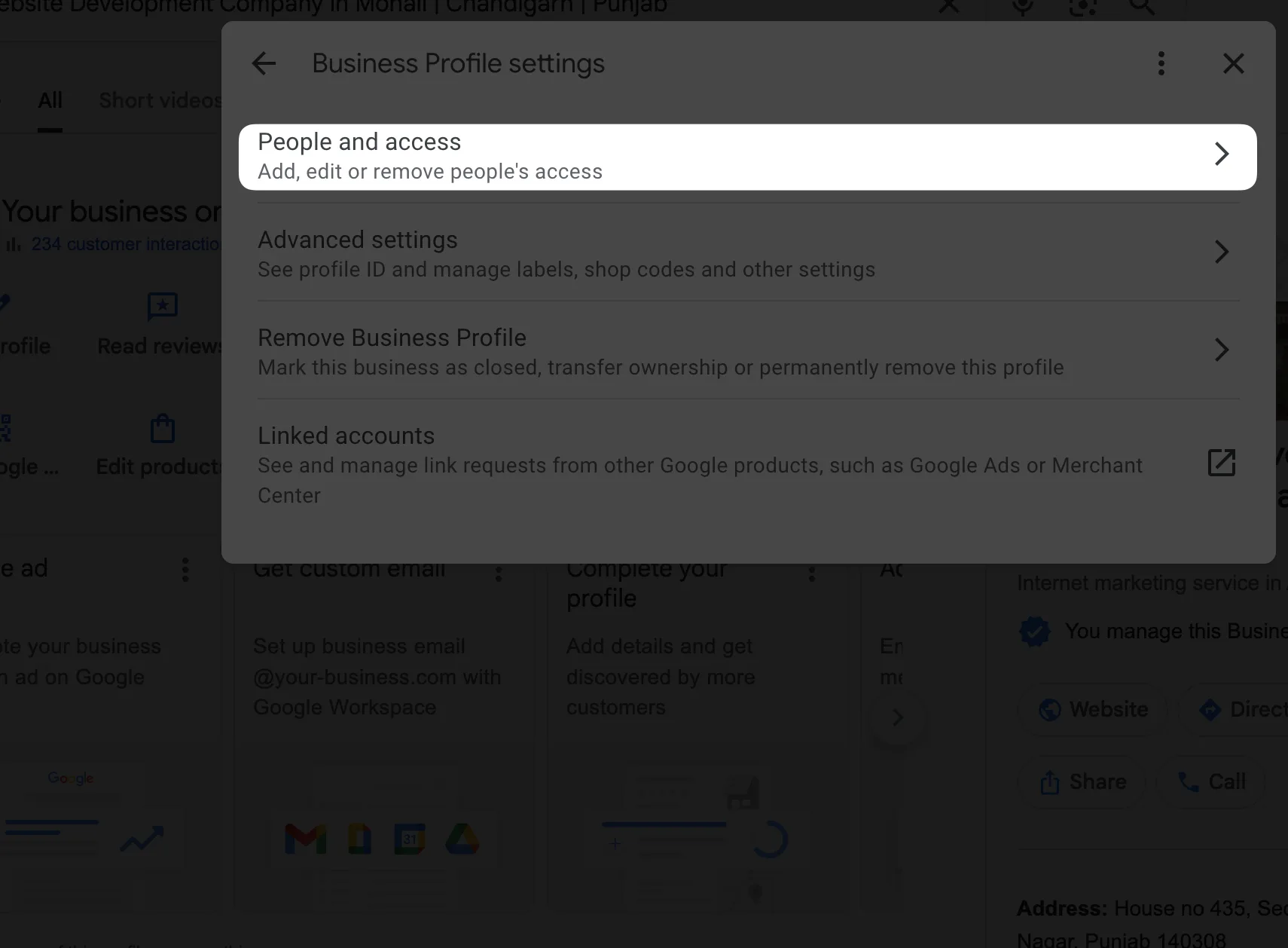
Select People and access from the popup settings menu.
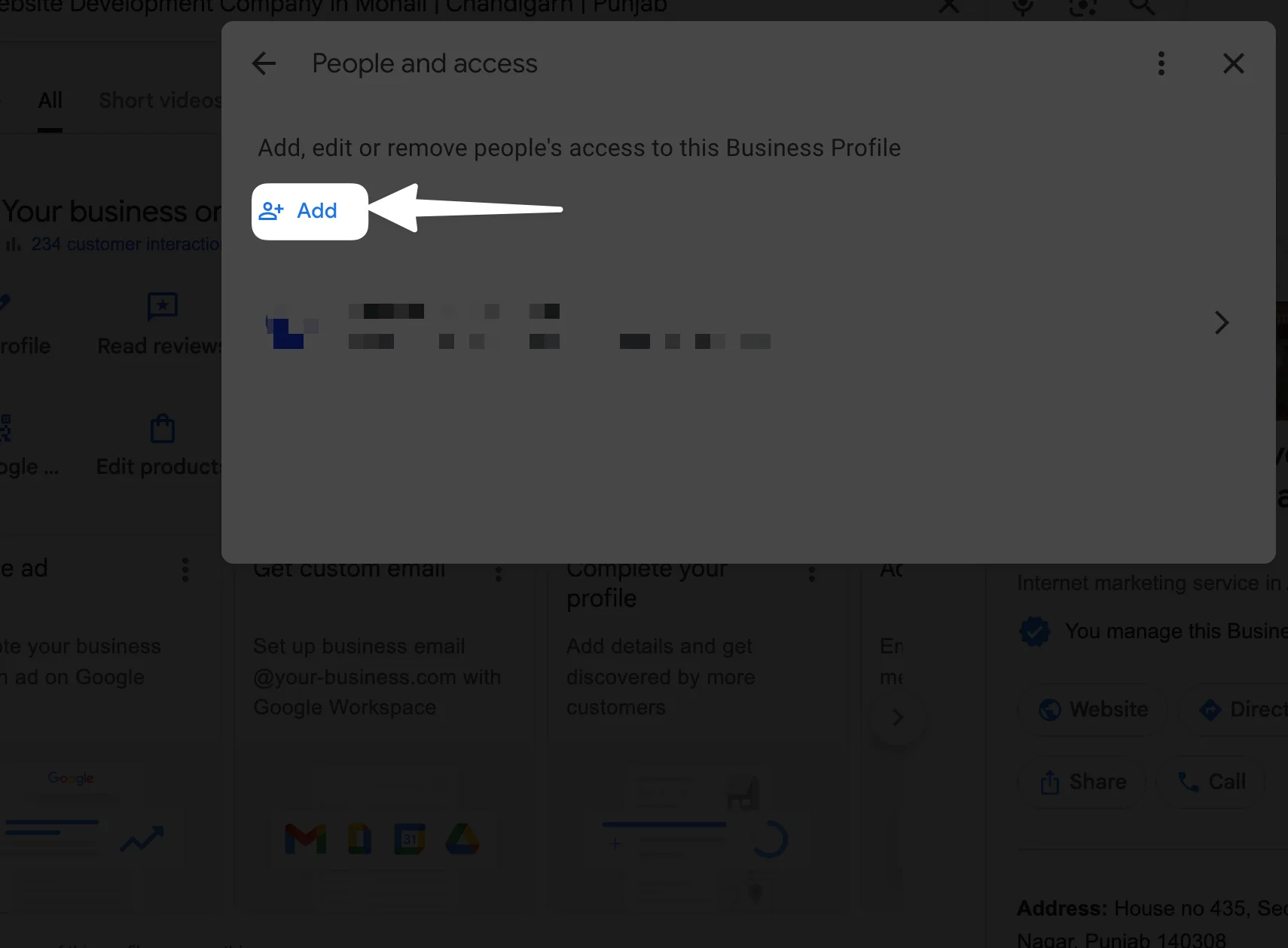
Click on add button and there you can add the dedicated user account with owner or manager roles.
Use these practical definitions:
Primary owner controls ownership and can transfer ownership
Owner can manage most profile settings and users in many cases
Manager can edit business info and respond to reviews, but has less control over user management
Your goal:
Keep only one or two trusted people as owners
Keep most staff as managers
Remove access fast when roles change
Next, you will apply this to agency access and multi-location teams.
Agency access, bulk location management, and safe sharing
Agencies often ask for owner access. You should avoid that unless you must. Use manager access for daily work. If you manage many locations, use bulk location management GBP and keep ownership centralized.
Safe sharing rules:
Give agencies manager access, not primary owner access
Use a contract clause that requires access removal on termination
Review users monthly and after any staff change
Avoid shared logins and avoid forwarding the owner inbox
Next, you will learn the exact steps to remove risky access, because fast removal stops ongoing edits.
How to remove a manager or user from your Google Business Profile
If you need to remove manager from Google Business Profile, use the Users section in the profile.
Do this:
Open Google Business Profile Manager
Select the correct business profile
Open the menu for users or “Business Profile settings”
Find “People and access” or “Users”
Select the user
Remove access or change role to a lower role
If you cannot access the profile because someone else controls it, you need Google Business Profile ownership verification steps and support escalation. Next, you will set up alerts so you see changes before customers do.
Turn on alerts and monitor changes like a routine
You cannot stop every suggested edit, so you must detect changes fast. Alerts and monitoring reduce damage time. This is the core of “stop unauthorized changes GBP” in real life.
How to turn on notifications for Google Business Profile changes
To turn on GBP email alerts, each user must enable notifications in their own settings. Google sends emails for some changes, but not all. You should still check the dashboard.
Click on same 3 dots menu like above to open the settings popup.
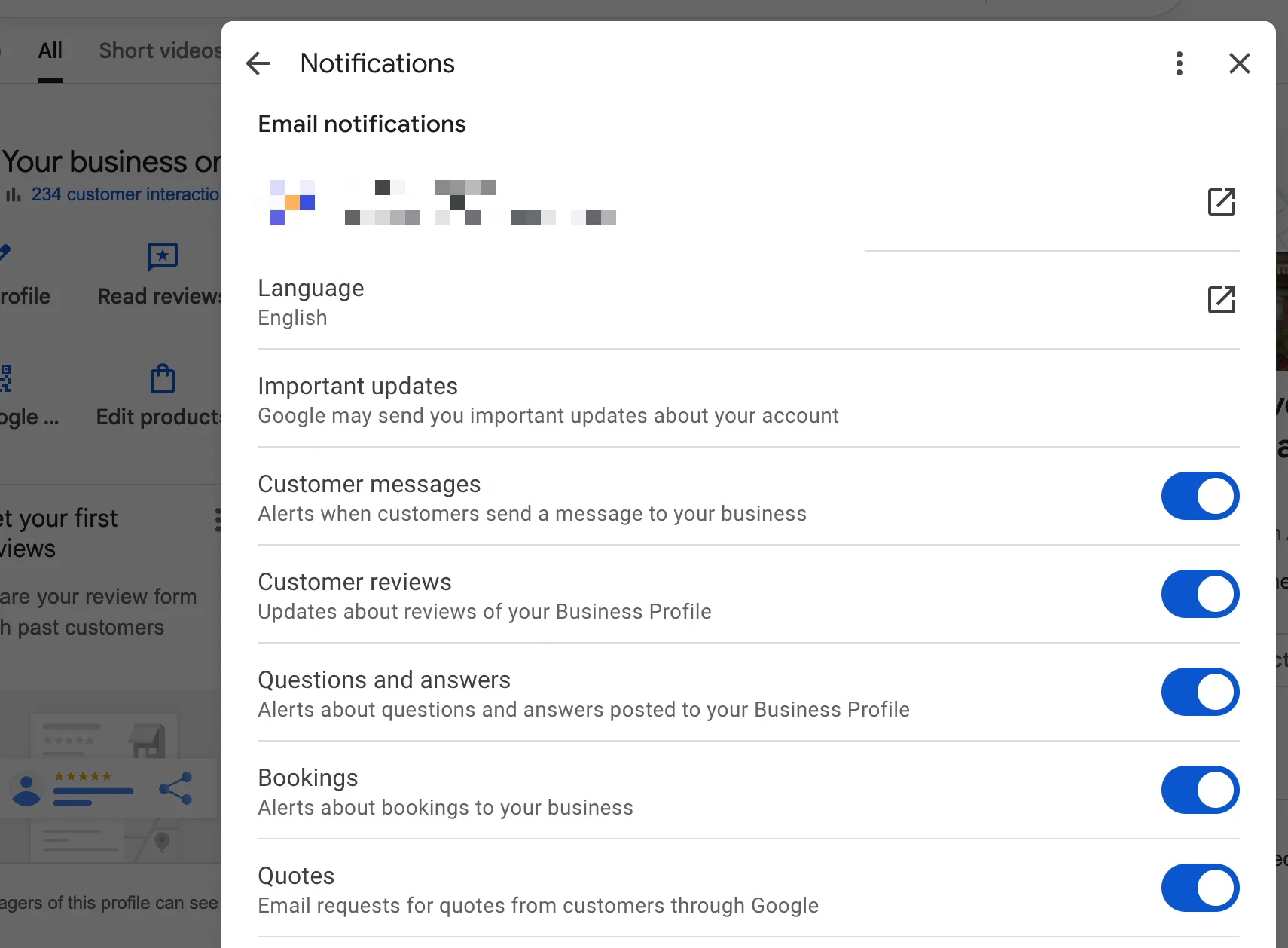
Select Notifications menu from the the popup.
Now toggle everything on to stay updated about the changes been made to your profile.
Next, you will add manual checks, because email alerts can miss auto-applied edits.
Where to check Google Business Profile change history
Google shows signals of edits in different places depending on the interface. You should look for:
Go to this link here and follow the on screen instructions to see your edits.
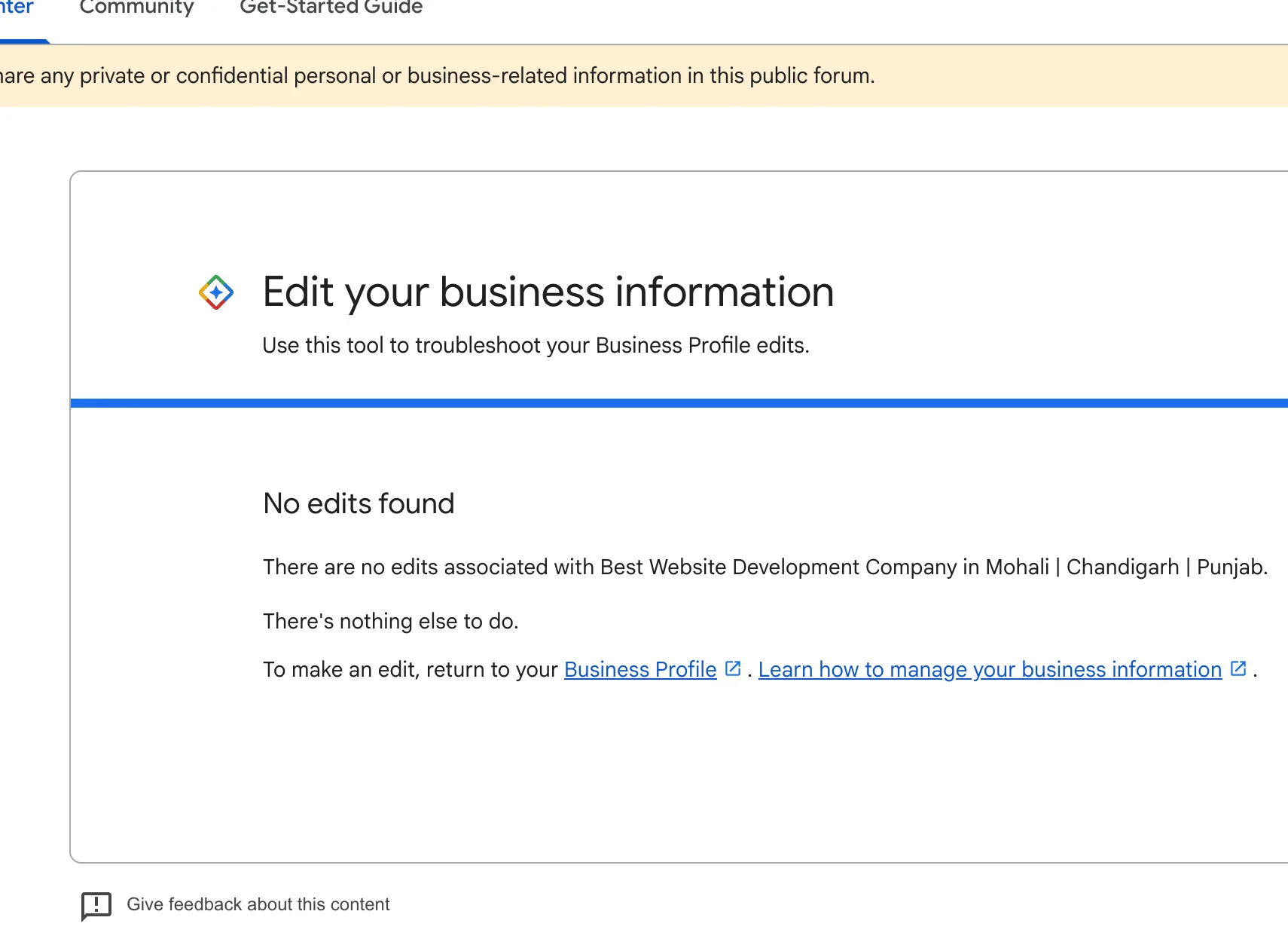
Create a habit to monitor Google Business Profile changes by checking key fields directly:
Name
Address and map pin
Phone
Website
Hours and special hours
Primary category and additional categories
Attributes and services
Next, you will use a simple schedule so this becomes easy and repeatable.
Monitoring checklist with a daily, weekly, and monthly rhythm
Use this monitoring plan:
Daily
Check notifications and suggested edits
Confirm hours, phone, and address
Scan for new reviews and Q&A that suggest confusion
Weekly
Confirm categories and attributes
Check photos for spam uploads
Compare your website contact page with GBP NAP
Monthly
Export or record key fields in an incident log
Review user access and roles
Search Google Maps for duplicates and impostors
Next, you will learn how to accept, reject, and reverse edits in the dashboard.
Review, reject, and revert edits fast
Speed matters. If a wrong edit stays live for a week, Google can treat it as true. Customers can also report the wrong data, which can reinforce the bad edit. You need a clear process to report incorrect edits Google Business Profile and revert changes on Google Business Profile.
How to handle Google Business Profile suggested edits
When you see a suggestion, you usually have options to accept or reject. Reject wrong edits quickly. If you accept a correct edit, update your website and citations to match so the data stays stable.
Use this workflow:
Open the profile dashboard
Open the suggested edit prompt
Compare the suggestion to your real-world proof
storefront signage
utility bill or lease
official website contact page
Reject if wrong
Accept if correct, then update your site and listings
Next, you will handle the harder case: Google changes the data without asking.
What to do when Google auto-applies incorrect edits
If Google auto-applies a wrong change, you must correct it and add proof signals. This often happens with:
business hours changed on Google
address changed on Google Maps
phone number changed on Google listing
website URL changed on GBP
category changes Google Business Profile
Do this:
Edit the field back to the correct value in GBP
Add supporting proof on your website
clear NAP on contact page
LocalBusiness schema with matching NAP
Update key citations that Google trusts
major data aggregators in your country
top local directories
Watch for reversion over the next week
If the edit keeps coming back, treat it as an attack or a data conflict. Next, you will use reporting and escalation paths.
Report malicious edits, spam, and competitor abuse
Some edits are honest mistakes. Some edits are spam. Some edits come from competitors who want to steal calls. You need tools to prevent competitors changing GBP and to document patterns.
How to report spam on Google Maps and spam edits on GBP
Use Google Maps reporting tools when you see spam behavior. Examples include keyword stuffing, fake categories, wrong phone numbers, and wrong websites.
Report patterns like:
A competitor suggests your phone number to match theirs
A lead-gen site replaces your website URL
A fake “closed” status appears
A new category appears that does not fit your business
Actions to take:
Use “Suggest an edit” to correct the field back
Use “Report a problem” in Google Maps for severe abuse
Collect evidence with screenshots and dates
Next, you will escalate when reporting does not fix the issue.
Google Business Profile support contact and community forum escalation
If edits cause serious harm, use official escalation paths:
Google Business Profile support contact through the help center options available in your region
The Google Business Profile community forum for guidance and escalation patterns
Prepare proof before you contact support:
Screenshots of the wrong fields
Photos of storefront signage
Utility bill or business license if address or name is disputed
A timeline from your incident log
If the profile becomes suspended after repeated edits, you may need Google Business Profile reinstatement. Next, you will reduce the chance of future edits by making your data consistent across the web.
Reduce future edits with consistency and trust signals
You cannot fully lock Google Business Profile against public suggestions, but you can reduce how often Google trusts outside edits. Google looks for consistent business facts across sources. Your job is to remove conflicts.
NAP consistency, citations, and on-site signals
NAP means name, address, and phone. Keep NAP consistent on:
Your website header or footer
Your contact page
Your schema markup
Major directories and social profiles
This consistency helps you:
protect Google Business Profile from edits that come from data conflicts
reduce auto-applied changes
improve local ranking stability
Next, you will focus on the fields that attackers target most.
Protect high-risk fields: name, category, phone, website, hours
Attackers target fields that change customer actions. You should treat these fields as high priority.
High-risk fields and what to do:
Name
Use your real-world brand name only
Avoid extra keywords that can trigger edits and reviews by Google
Categories
Use the closest primary category
Add only relevant secondary categories
Phone
Use a direct local number when possible
Avoid frequent tracking number swaps
Website
Use a stable URL that you control
Avoid redirects that look suspicious
Hours
Set special hours for holidays early
Keep hours consistent on your site and signage
Next, you will align your work with Google Business Profile guidelines to reduce flags and suspensions.
Follow Google Business Profile guidelines to avoid suspensions
Google can suspend profiles when it detects misleading info. Repeated edits can raise risk, especially for name and address. Follow guidelines for:
Real business name
Real address rules for storefront vs service-area business
Accurate hours
Accurate categories
If you get a suspension due to edits GBP, do not keep changing fields daily. Stabilize the data, gather proof, and submit reinstatement with clear documentation.
Decision tree for common edit types
Use this quick decision path:
If the phone number changed on Google listing
Edit it back in GBP
Check call tracking settings
Update your website contact page and schema
Report spam if it repeats
If the address changed on Google Maps
Edit it back and confirm the map pin
Upload storefront photos that show signage and street
Prepare documents in case verification triggers
If business hours changed on Google
Edit hours and add special hours
Match hours on your website and top directories
If brand name changes Google Business Profile
Change it back to the real-world name
Remove extra keywords
Gather signage proof
Contact support if the name keeps reverting
If category changes Google Business Profile
Restore the correct primary category
Remove irrelevant categories
Watch ranking and calls for a week
Next, you will get an incident log template so you can prove repeated abuse.
Downloadable incident log template (copy and paste)
Copy this into a spreadsheet or doc:
Date noticed:
Time noticed:
Field changed:
Old value:
New value:
Where seen:
Google Search
Google Maps
GBP dashboard
Evidence collected:
Screenshot link
Photo proof link
Action taken:
Reverted in GBP
Rejected suggested edit
Reported spam on Google Maps
Contacted Google Business Profile support contact
Posted in community forum
Outcome:
Fixed
Pending
Reverted again
Notes:
Suspected competitor
Data conflict source
Next follow-up date
Next, you will close with a simple plan you can follow.
Final Thoughts
You cannot fully block Google Maps edit suggestions, so you cannot fully disable edits on Google Business Profile. You can still protect performance by controlling ownership, tightening permissions, and reacting fast. Use a dedicated owner account with two-factor authentication Google account. Keep roles clean with clear Google Business Profile admin vs manager rules. Turn on alerts, check key fields daily, and keep an incident log so you can prove repeated abuse.
Start today with three actions:
Secure the owner account and recovery options
Review users and remove anyone you do not trust
Set a daily check for name, address, phone, website, hours, and categories
That routine will prevent small edits from turning into lost leads and lost trust.
Frequently Asked Questions

Written by
Raman Singh
Raman Singh is a highly skilled marketing professional who serves as the head of marketing at Copyrocket AI. With years of experience in the field, Raman has developed a deep understanding of all asp
View all postsYour AI Marketing Agents
Are Ready to Work
Stop spending hours on copywriting. Let AI craft high-converting ads, emails, blog posts & social media content in seconds.
Start Creating for FreeNo credit card required. 50+ AI tools included.
Related Articles
 General
Why Is My Google Review Not Showing (3 Methods)
This guide explains the most common reasons a google review not showing publicly happens and how to rectify the same.

 General
11 Best Local SEO Tools for Agencies in 2026
This article lists the 11 best local SEO tools for agencies. It also explains how to choose an agency local SEO software stack based on clients, locations, and workflow needs.